
duna for Mac
Read the room.
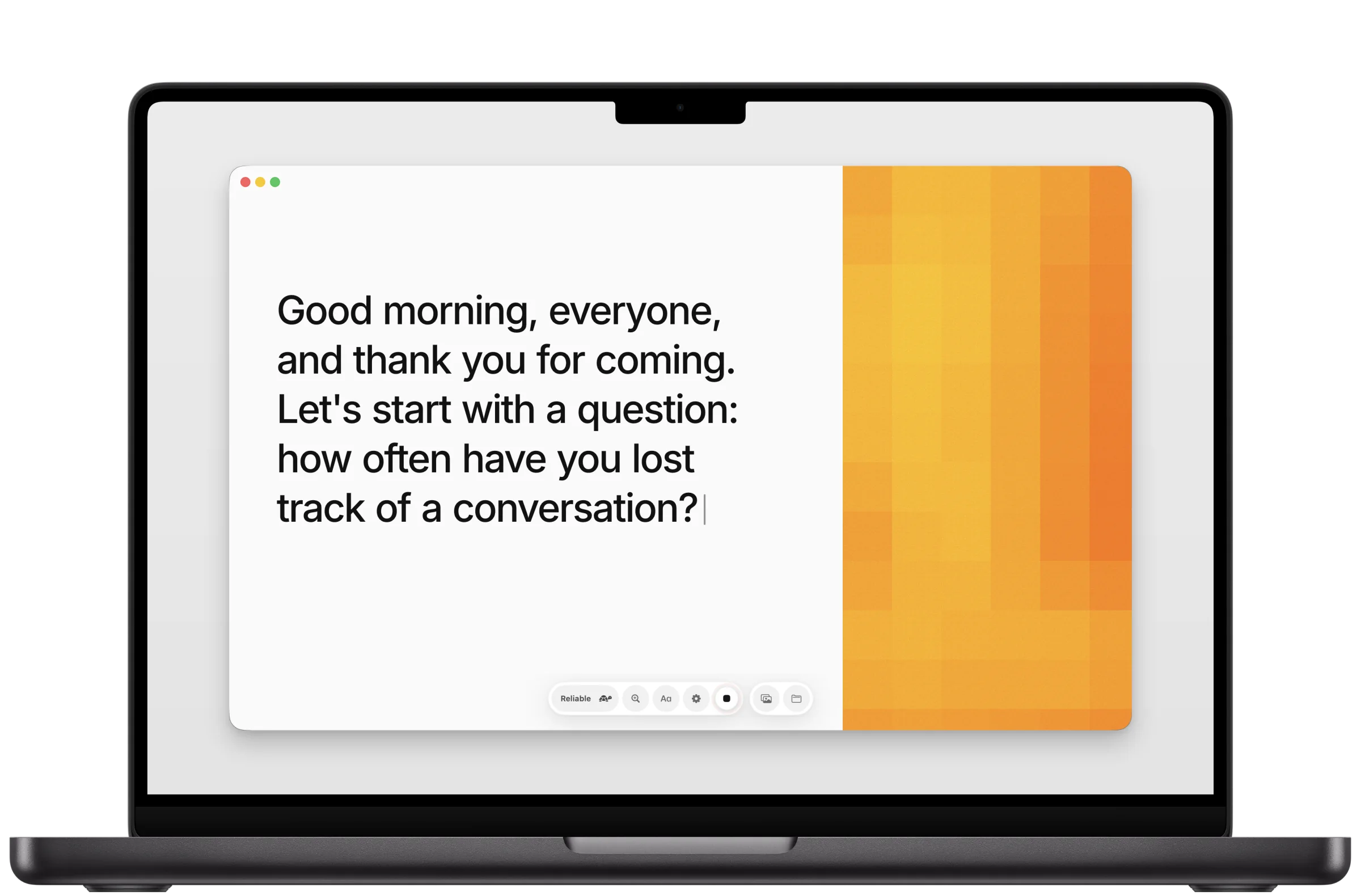
Listen
Getting started
Click the screen.
Read what is being said.
duna turns speech into text as people talk, on the Mac itself. Put it where you can hear the room, click, and read. The first time, it asks which language to download and for the microphone.
Start and stop
- Click anywhere on the text, or press Space, to start listening.
- Read. The bar at the bottom fades away after a few seconds so nothing distracts from the text; move the pointer to bring it back.
- Click again, or press Space, to stop.
Read
Made for reading
Text that holds still.
So you can keep up.
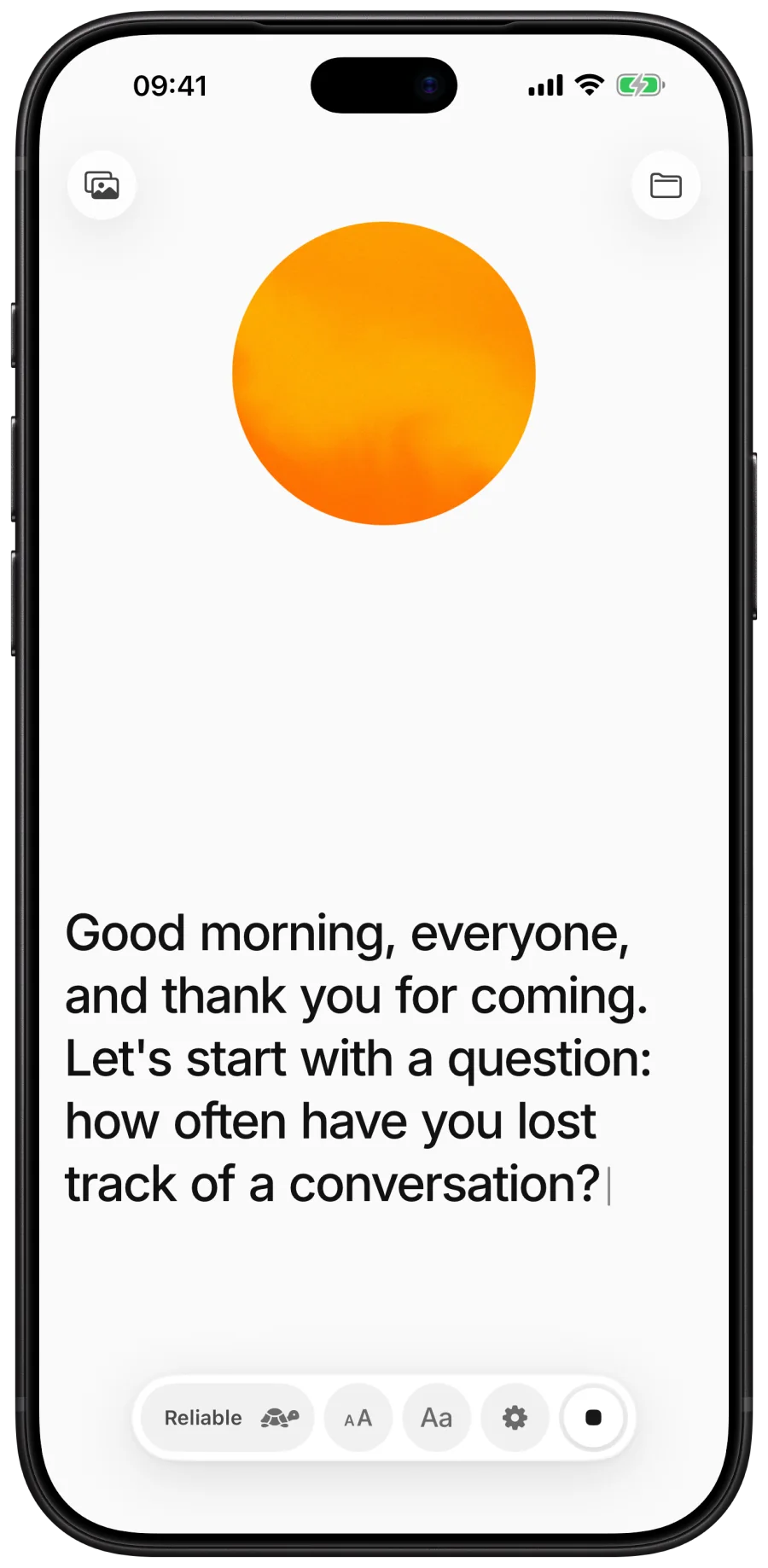
Words you have already read hold still. The newest line stays at the same height, older lines roll up, and a word only changes while it is still grey. Punctuation, capitals and numbers as digits arrive as people speak.
New voice, new paragraph
When a different person starts speaking, duna usually begins a new paragraph. A long pause starts a new line.
Large type
From comfortable to huge. Drag the size in the bar, or use ⌘+ and ⌘−.
Four typefaces
Inter, SF Pro, and Atkinson Hyperlegible in two cuts, designed for low vision.
Light and dark are switched in the bar's settings, or with ⌘D.
Tune
The bar
Everything in one bar.
Out of the way while you read.
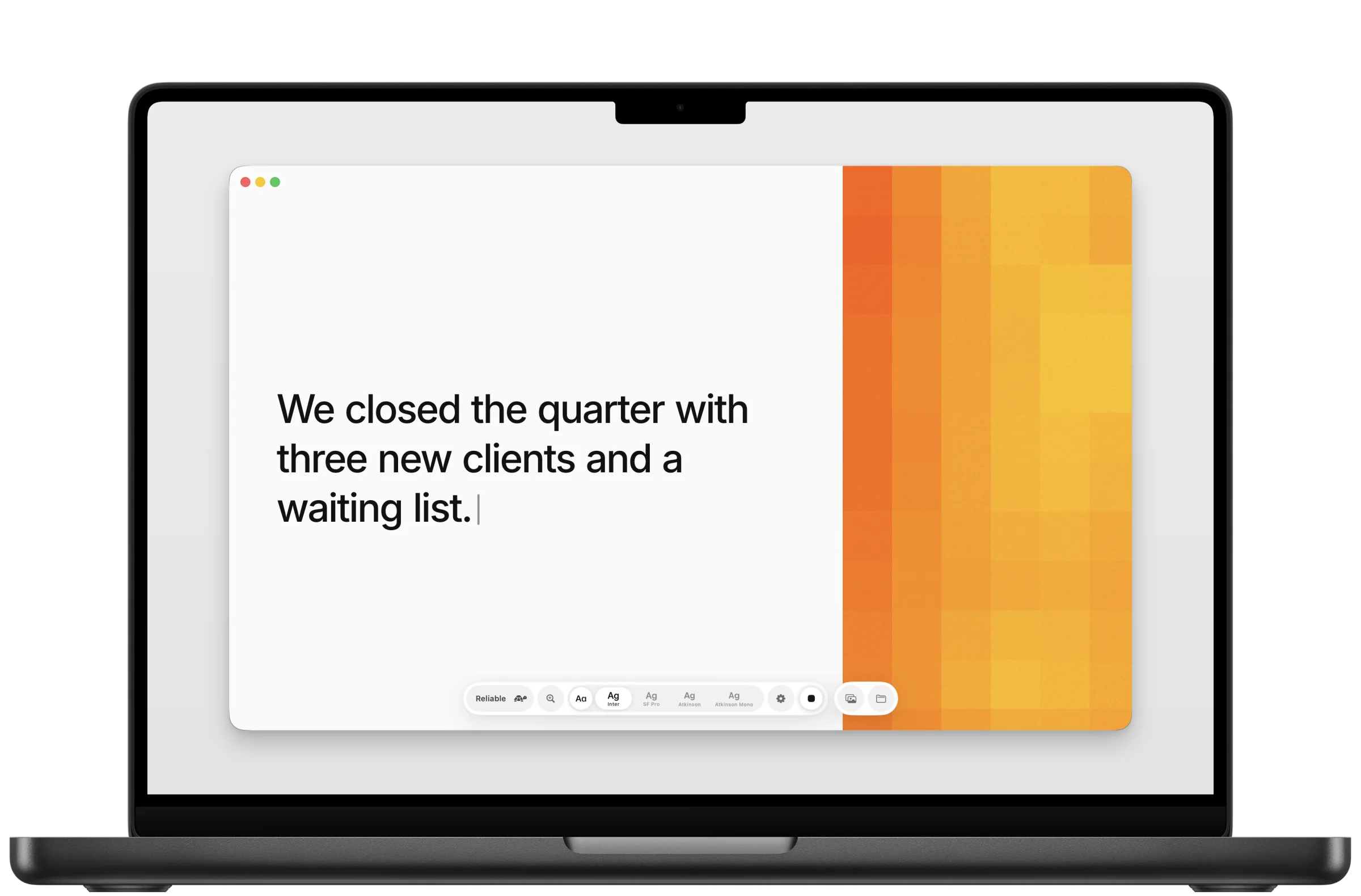
Each pill opens in place: the profile, the size, the typeface and the settings. Click the cross to close it, or press Esc.
Profile
Reliable, Balanced or Immediate: how sure duna must be before a word settles.
Size
A slider from small to very large type, also in the View menu.
Typeface
Hover a typeface to read about it, click to use it.
Light or dark
In the settings, or ⌘D.
Fade
Older lines fade a little, so the newest one stands out. ⌘G.
Panel
Show or hide the orange panel beside the text, for a narrower or a full-width page. ⌘\.
Profile
Steady, or quick.
You choose.
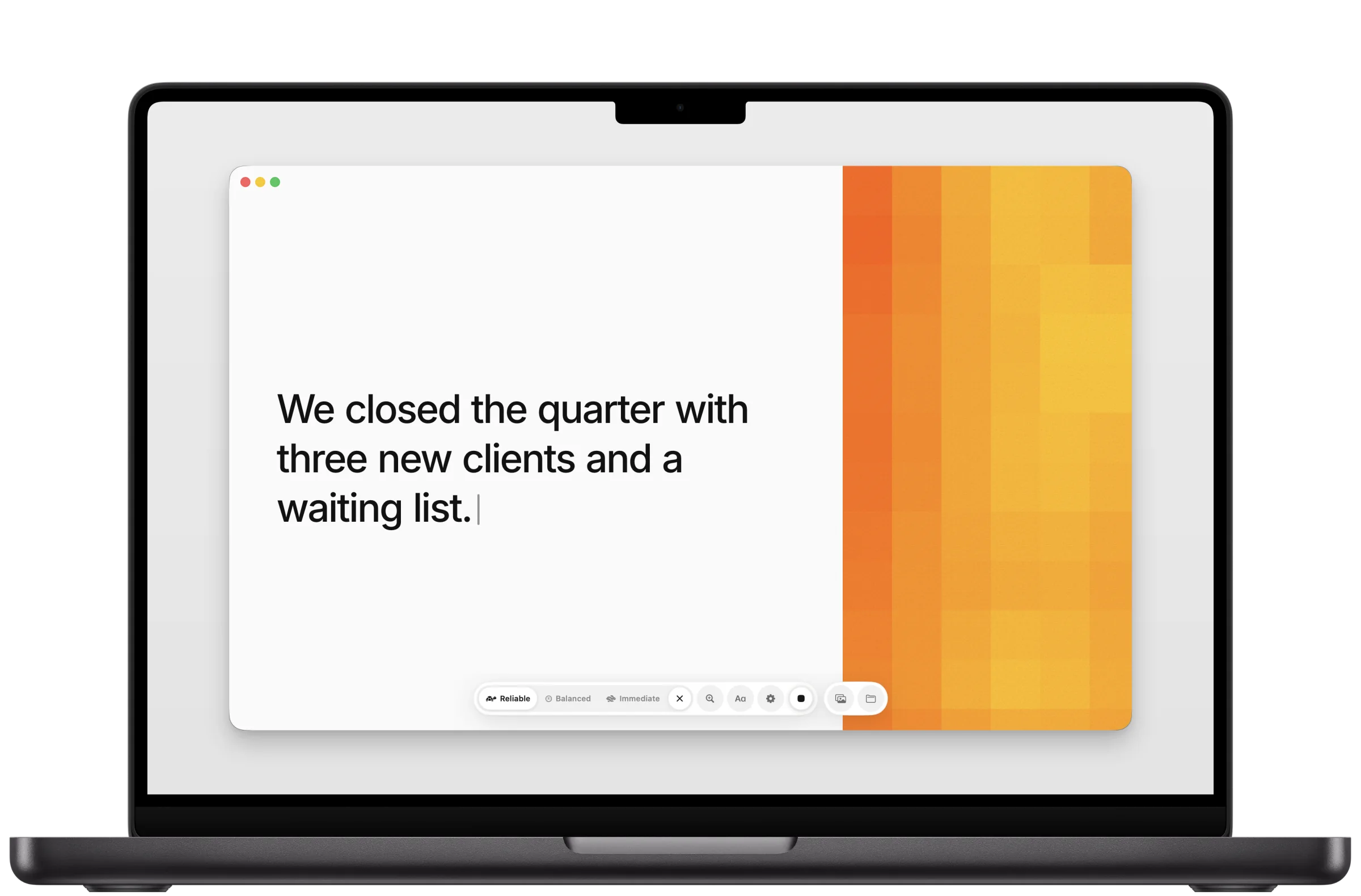
Reliable
The steadiest text. Words appear a moment later, once duna is sure of them. The best choice for reading.
Balanced
As steady as Reliable, but shows the words still being heard sooner.
Immediate
The fastest. Words settle as soon as they are heard, and now and then one is changed.
Speak
Language
Choose the language
people will speak.
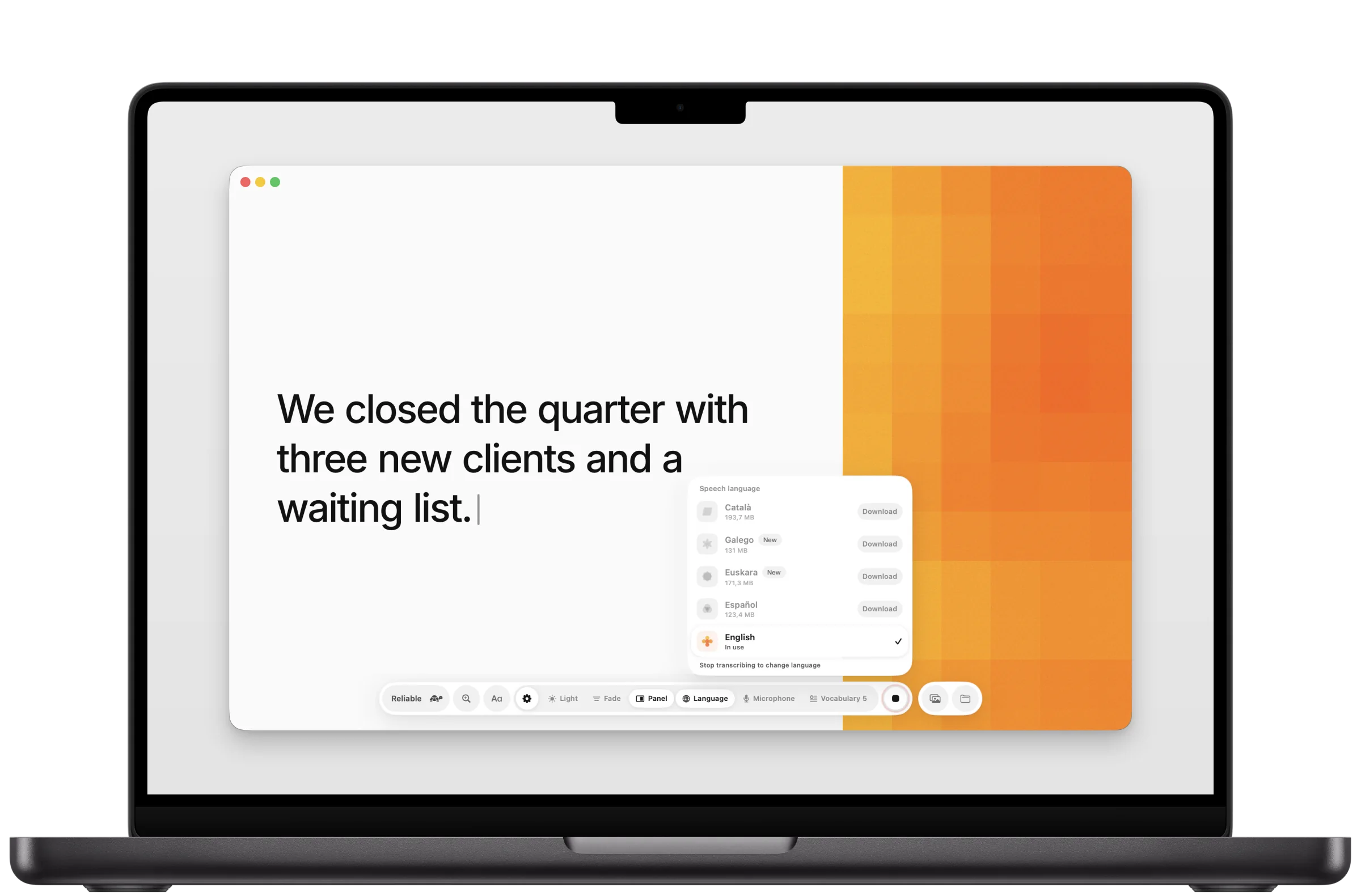
Open the settings, then Language. Each language downloads once and then works offline. Stop listening to switch.
Five
Languages
Five languages.
Downloaded once, then offline.
The app stays small: choose the language people will speak and download it once. Galician and Basque are the newest and make more mistakes. The app itself speaks all five.
English
123.4 MB, once
Español
123.4 MB, once
Català
193.7 MB, once
GalegoNew
131 MB, once
EuskaraNew
171.3 MB, once
Names
Vocabulary
Names and terms,
written the way you write them.
Add the names of the day: people, places, brands, acronyms. duna favours them while it listens, so they come out right. Up to 40 terms, and a change applies at once, even while listening.
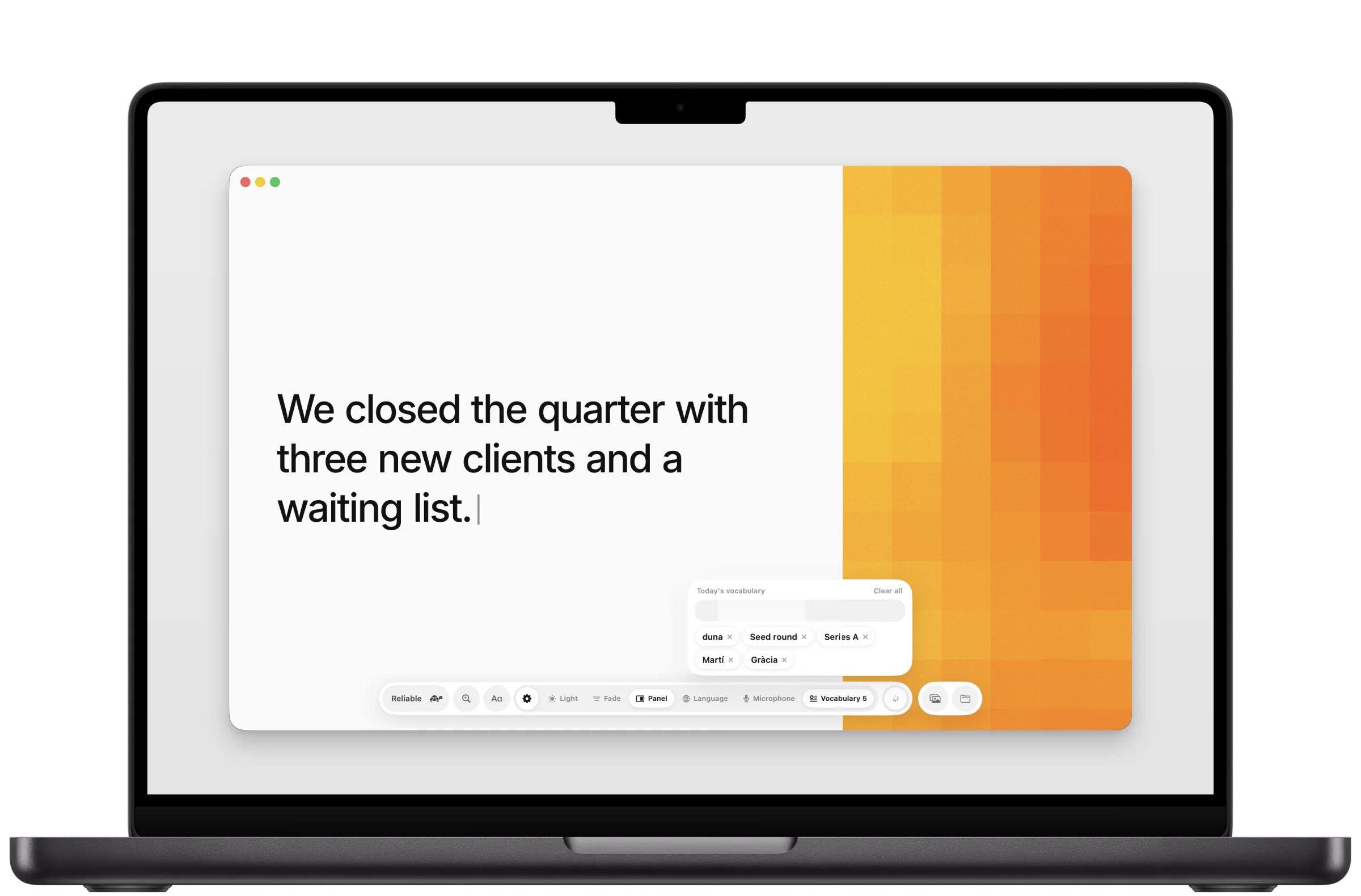
Add
Type a term and press Return. A repeated term is refused.
Remove
Click the cross on a term, or Clear all.
Microphone
In the same settings, Microphone chooses which one to listen with. Automatic follows the Mac's own choice, and duna keeps listening if you plug one in or take it out.
Keep
After you stop
Discard, export or save.
Nothing is lost meanwhile.
When you stop, the bar offers three actions. The transcript is already kept in the folder the moment you stop, so you can decide later.
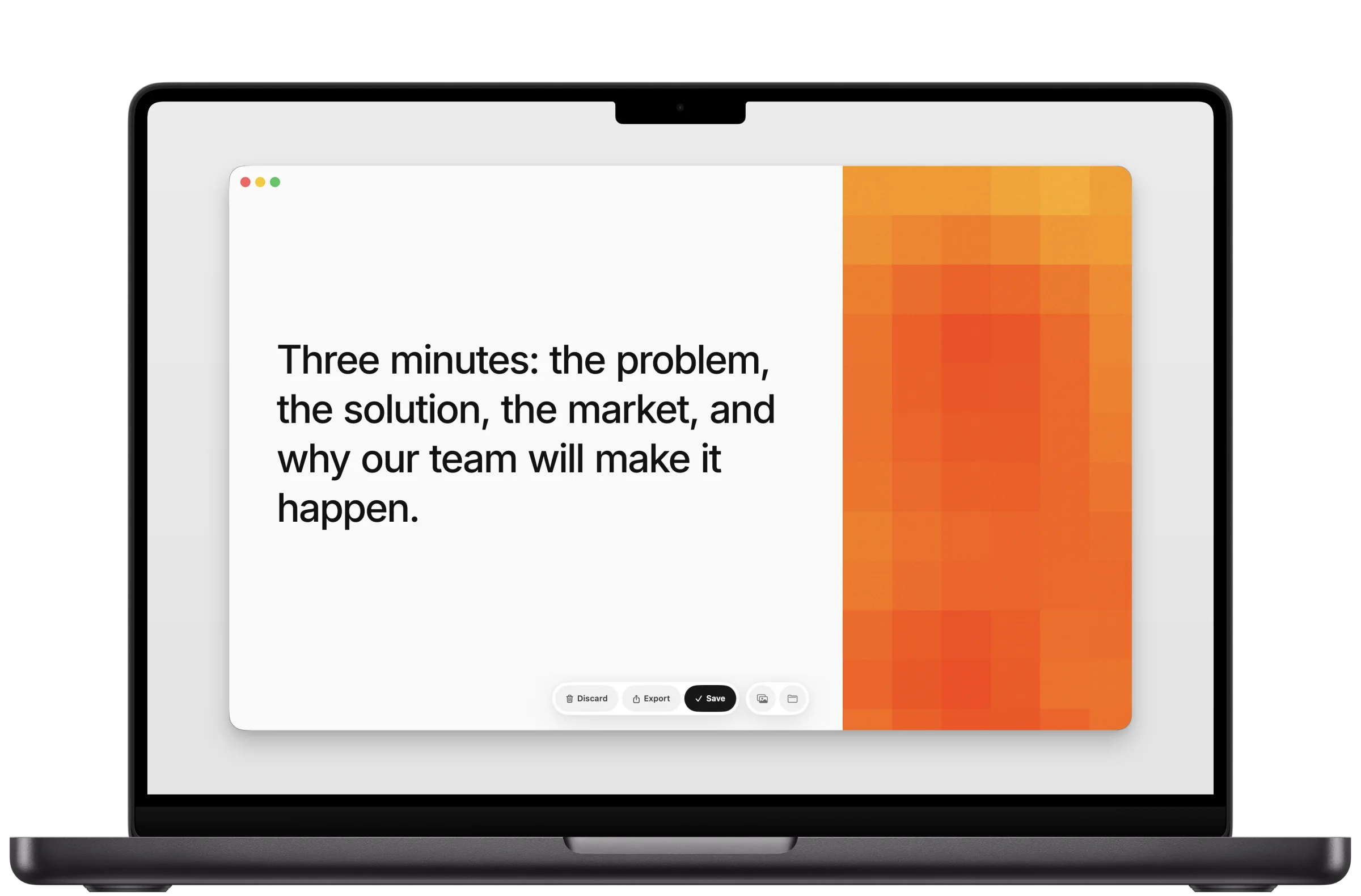
Save
The text flies into the folder beside the bar.
Export
As plain text, Markdown with the title and date, or .srt subtitles timed word by word. Copy it or save it as a file: ⌘E, ⌘S, ⇧⌘S.
Discard
Asks first, then lets the text go. Click the screen to start again.
Folder
Transcripts
Every session,
kept on your Mac.
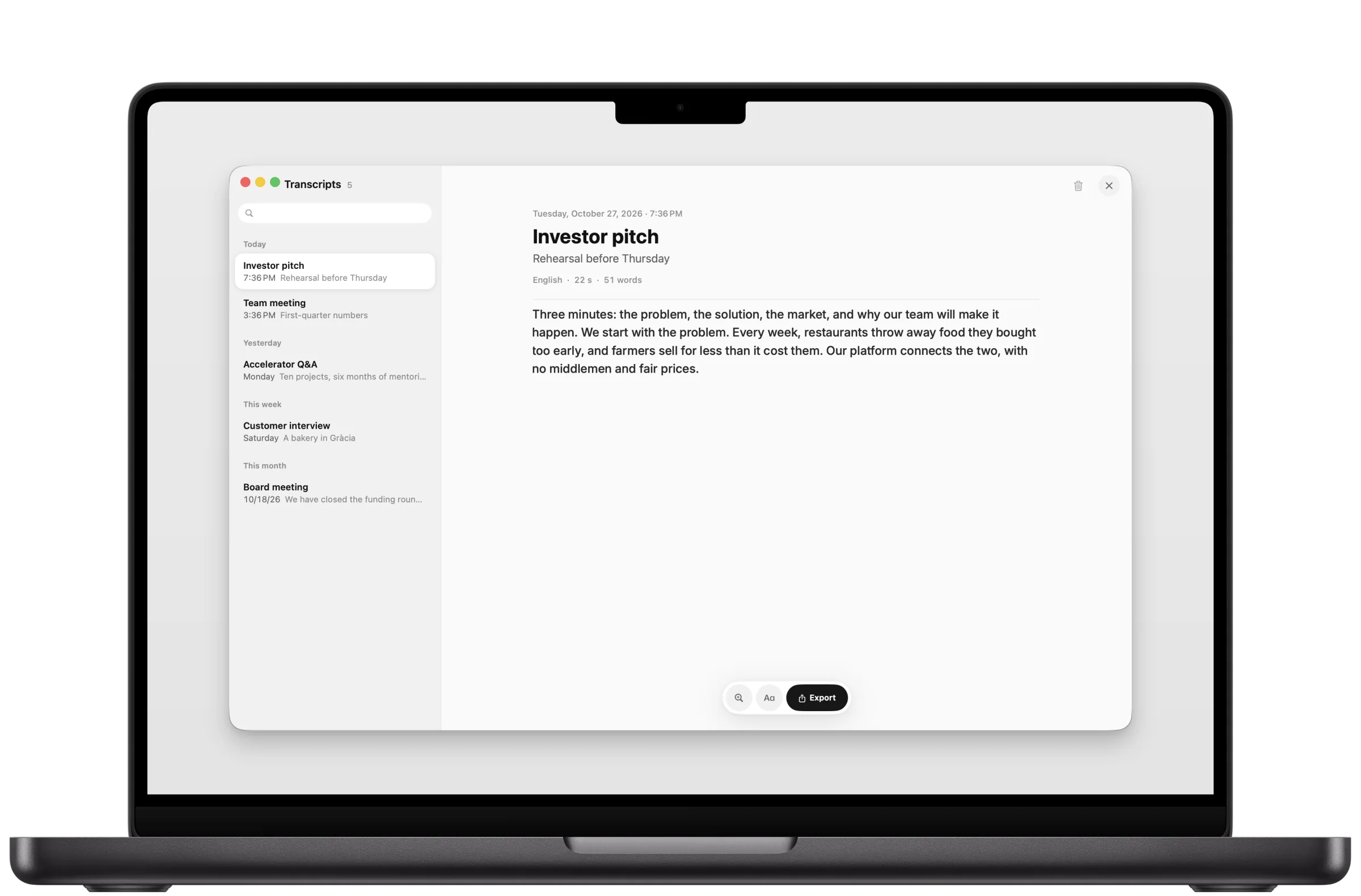
Click the folder beside the bar, or press ⇧⌘T. Transcripts are listed by day with a search on top. Give each one a title and a description, correct the text in place, and export it.
Video
Subtitles for your videos
Drop a video.
Get its subtitles.
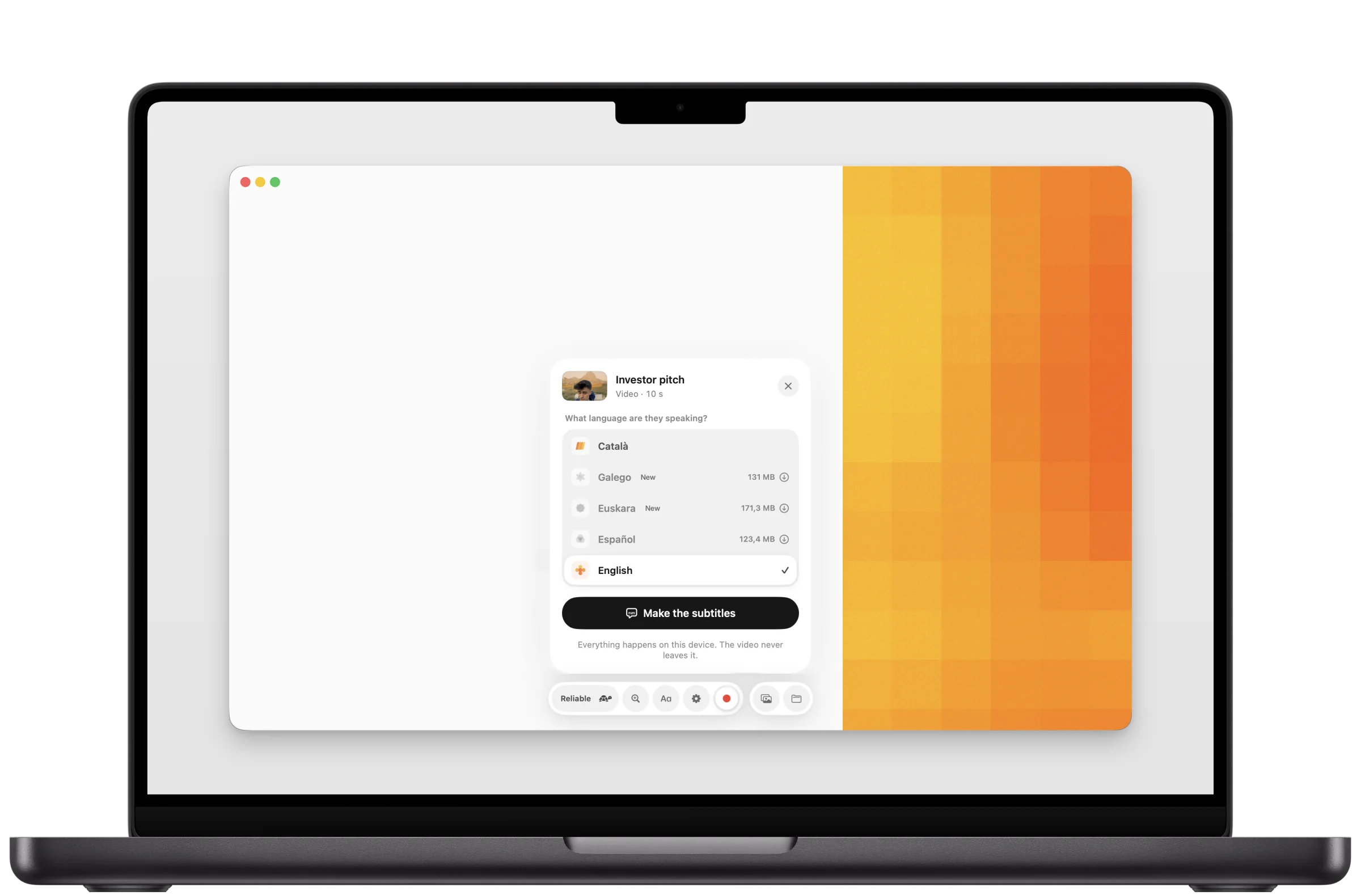
duna makes subtitles for a video or recording you already have, on the Mac. Click the gallery beside the bar, press ⌘O, drop a file on the window, or share it to duna from any app.
Make subtitles
- Choose the video.
- Say which language is spoken in it, and click Make the subtitles.
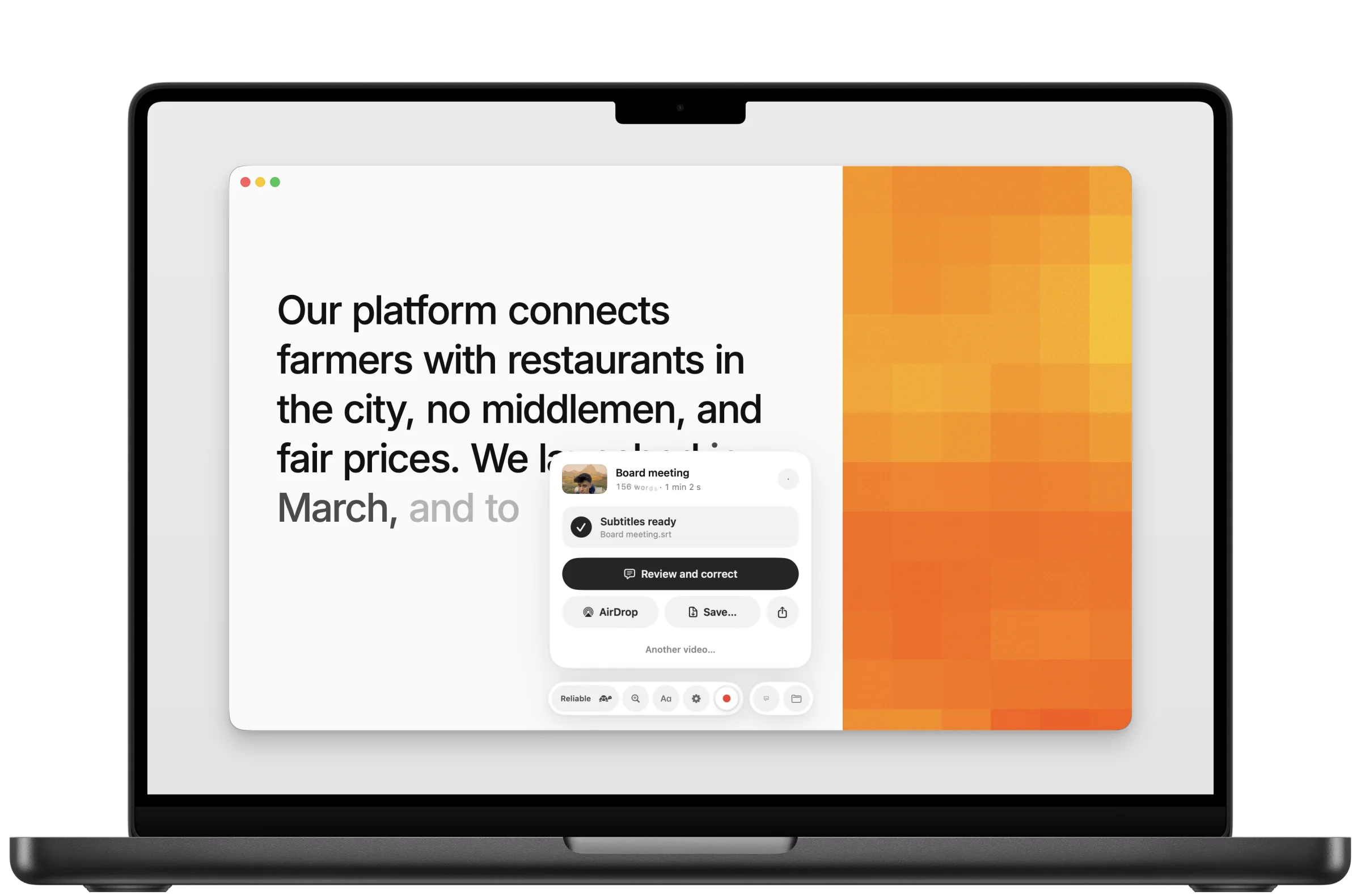
- Watch the words appear as duna works through it. A fifteen-minute episode takes under a minute on a recent Mac.
- Save the .srt file, AirDrop it, or open it in the editor.
While it works
Word by word,
as duna hears them.
Edit
Subtitle editor
Correct them line by line.
While the film plays.
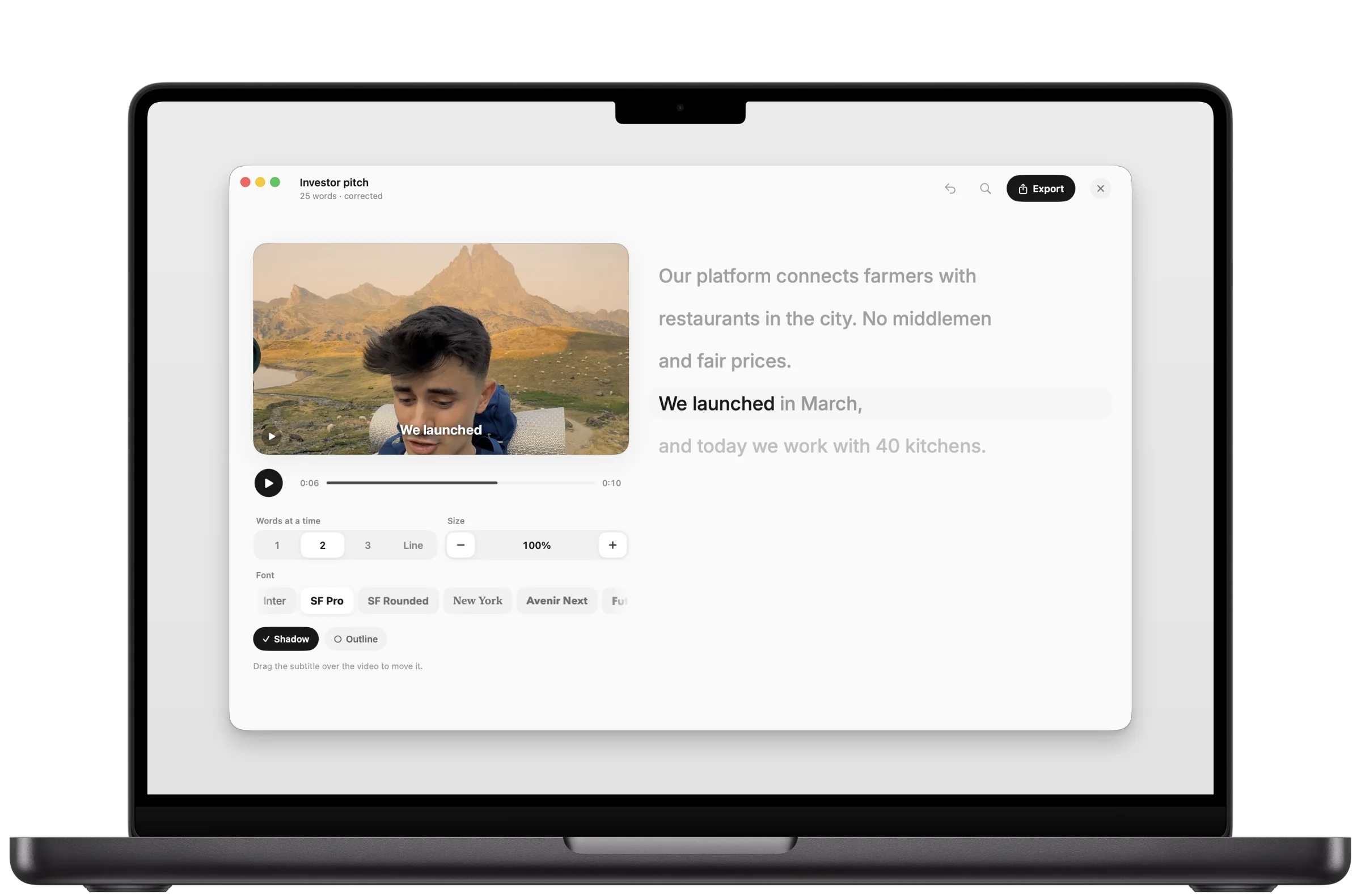
The editor opens by itself when the subtitles are ready. Click a line: it plays once while you type the correction, and the times follow the words you keep.
Keys
↩ keeps a correction, ⇥ goes to the next line, Esc drops it. Undo and redo as usual.
Split, join, add, delete
Four round keys beside a line being corrected. Add fills a silence the recogniser missed.
Find and replace
⌘F. Whole words, ignoring case and accents. Replace all is one undo step.
Style
1, 2 or 3 words at a time, or a whole line. Size, typeface, shadow and outline. Drag the subtitle anywhere on the film.
Kept as you go
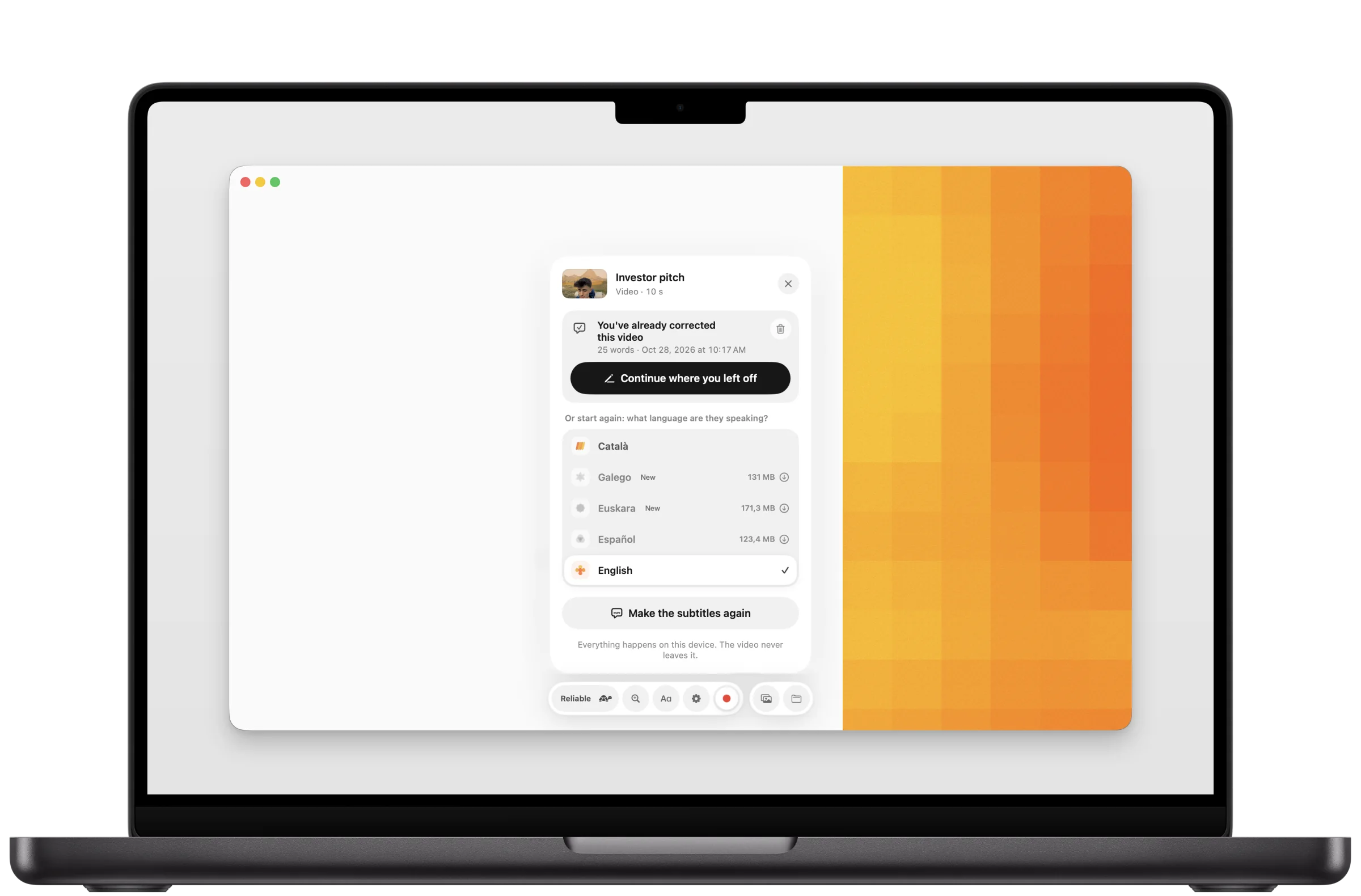
Corrections are saved on the Mac after every change. Open the same video again, even renamed, and continue where you left off.
Review again
The finished card leads with Review and correct, or press ⌘R.
Export
The video,
with the subtitles burnt in.
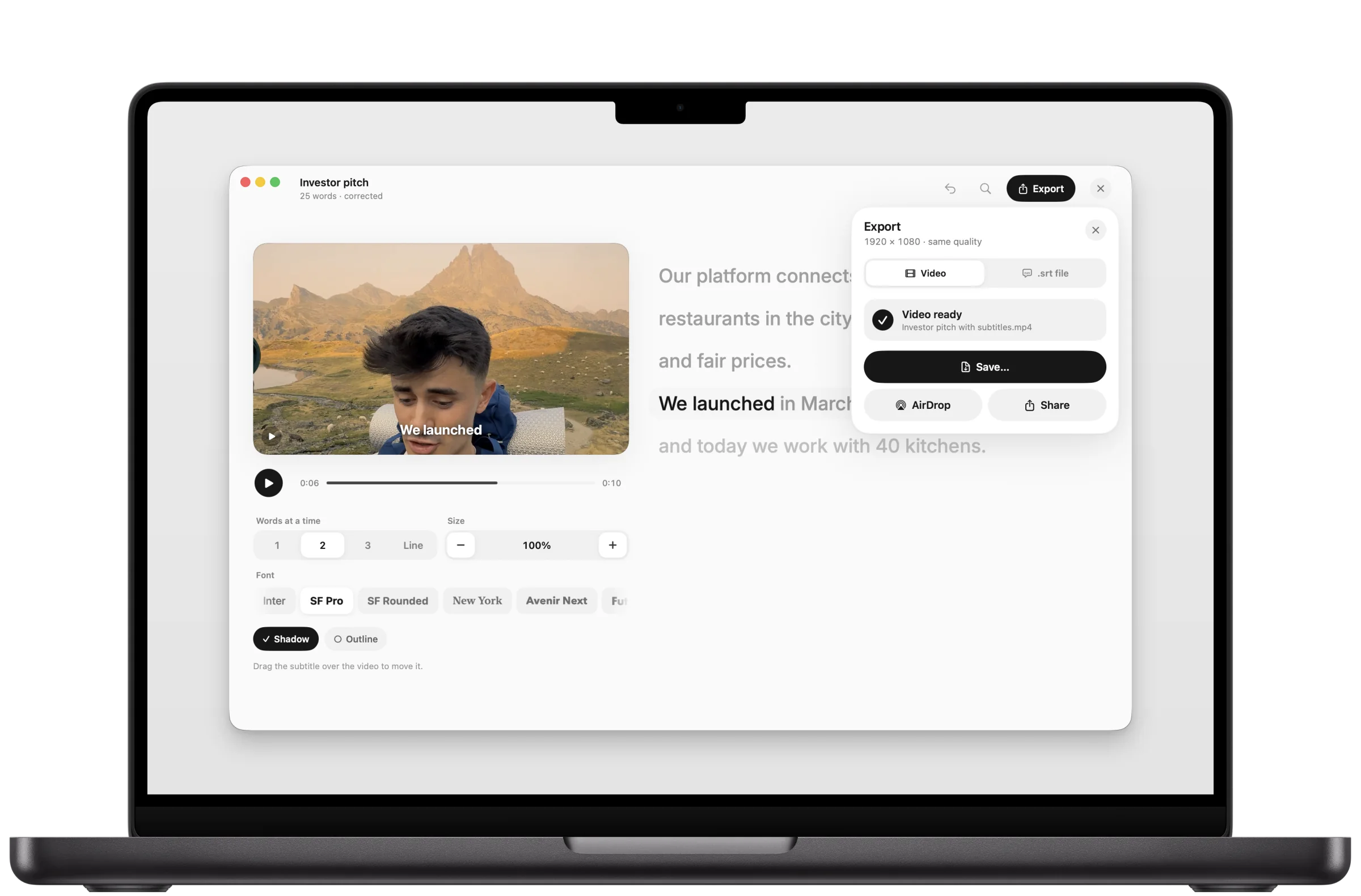
Click Export: the video at the same size and quality with the captions drawn in, or the .srt and text files. Save it, AirDrop it or share it.
Pick up again
Corrected once,
remembered.
Keys
Only on the Mac
Hands on the keyboard.
Eyes on the words.
Every setting in the bar is also in the menu bar. ⌘/ lists the shortcuts.
| Space | Start or stop listening |
| ⌘O | Make subtitles for a video |
| ⇧⌘T | Transcripts |
| ⌘E | Export the text on screen |
| ⌘S | Save as text |
| ⇧⌘S | Save as .srt subtitles |
| ⌥⌘C | Copy as .srt |
| ⌘+ | Larger text |
| ⌘− | Smaller text |
| ⌘0 | Original size |
| ⌘D | Dark mode |
| ⌘G | Fade older lines |
| ⌘\ | Show or hide the panel |
| ⌘R | Review a video's subtitles |
| ⌘F | Find and replace in the editor |
| Esc | Close a card or the editor |
Privacy
0 bytes
Nothing you hear leaves your device.
No account, no server, no analytics. The speech models run on your own chip, so no audio and no text is sent anywhere, and after a language's one-time download duna works in Airplane Mode. Read the Privacy Policy.
Mac and iPhone
One app.
On the Mac and the iPhone.
One download from the App Store gives you both. Each device listens and transcribes on its own: nothing travels between them, or anywhere else.
Price
Free.
Every feature, on every device.
No subscription, no in-app purchases, no ads. One download gives you duna on your iPhone and your Mac.
Questions
Short answers.
What Mac do I need?
A Mac with Apple silicon on macOS 26 or later.
Can I use it with Shortcuts?
Yes. Start and stop listening, get the text, save it as .txt, .md or .srt, change the language and make subtitles for a video, all from the Shortcuts app.
Does it need the internet?
Only to download a language, once. After that, listening, transcribing and making subtitles all work offline.
How accurate is it?
It is an automatic transcription and it can make mistakes, above all with names, noise, music or several people talking at once. Add names to the vocabulary, sit the device close to whoever speaks, and choose Reliable for the steadiest text. Galician and Basque make more mistakes than the other three.
Is it a hearing aid?
No. duna writes what it hears so you can read it. It is not a medical device and does not replace professional captioning.
Which languages can it listen to?
English, Spanish, Catalan, Galician and Basque. Choose one per session: duna transcribes the language you chose.
Where are my transcripts?
On the device where you made them, in duna's folder. They are not uploaded and they do not sync between devices.
Something else? Support answers every message.