
duna for iPhone
Captions in hand.
Hello
First run
Three screens,
and duna is listening.
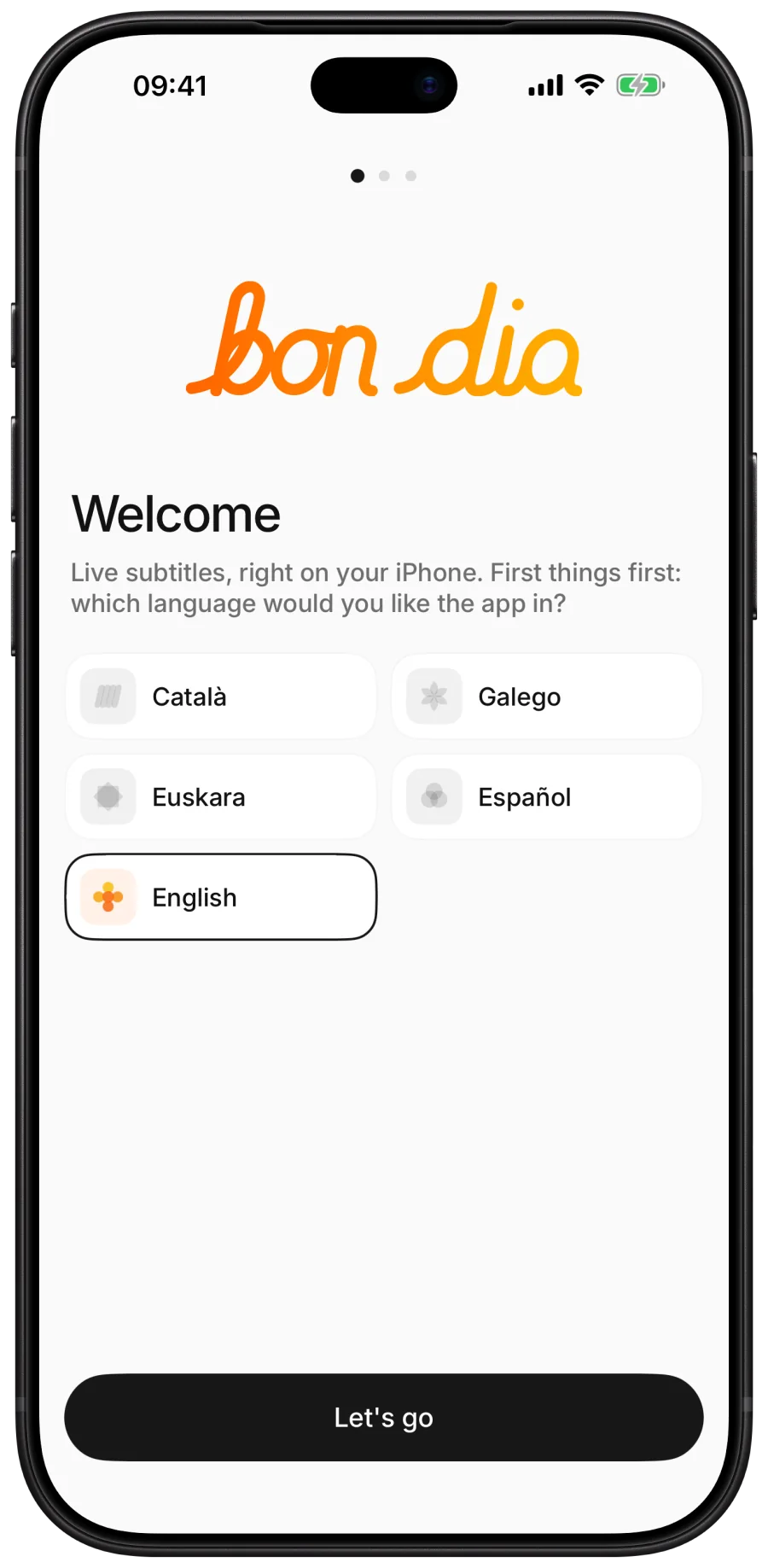
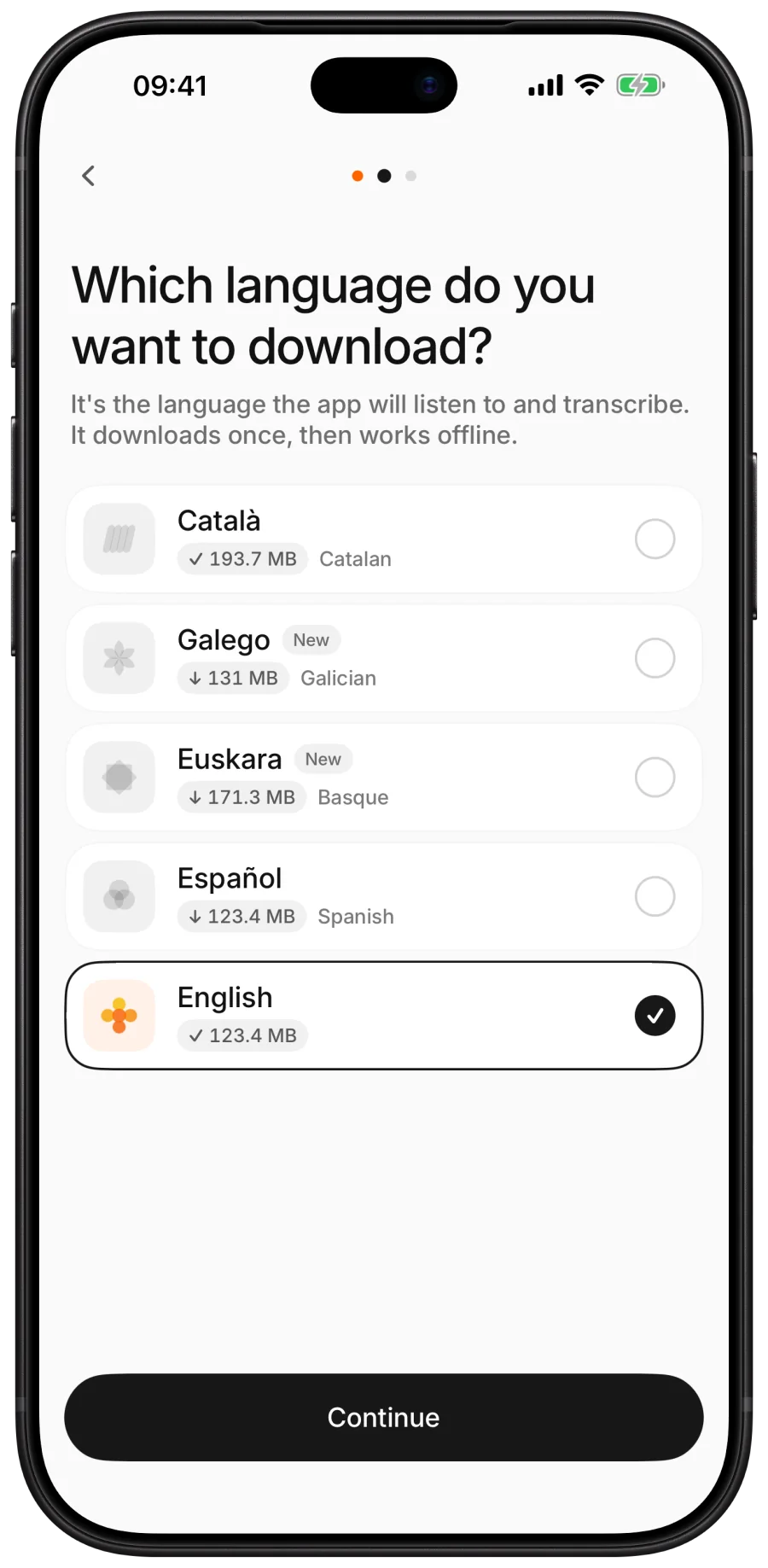
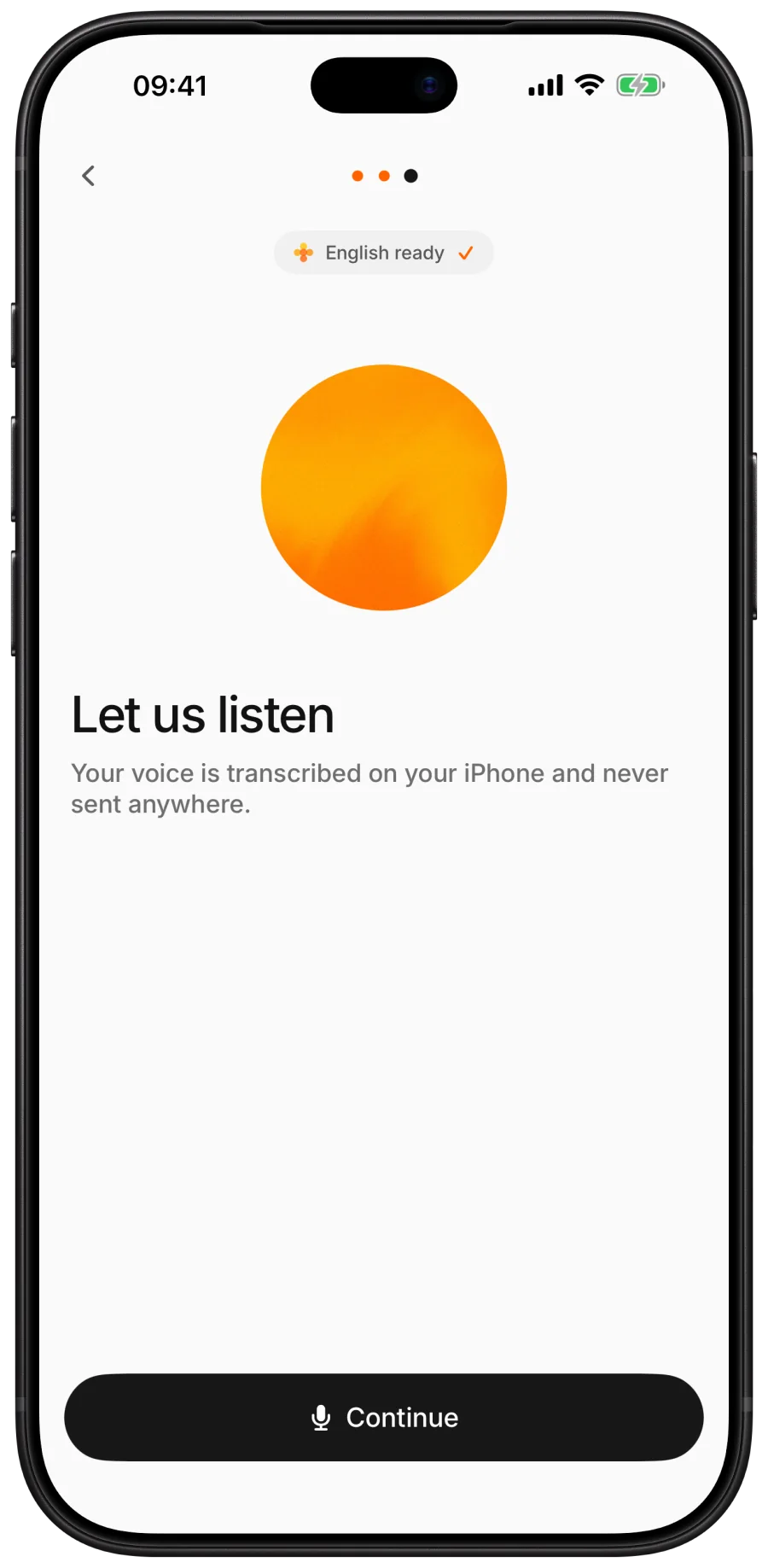
Choose the language the app speaks to you, then the language to listen to. It downloads once, and the welcome only goes on when it is ready.
Listen
Getting started
Tap the screen.
Read what is being said.
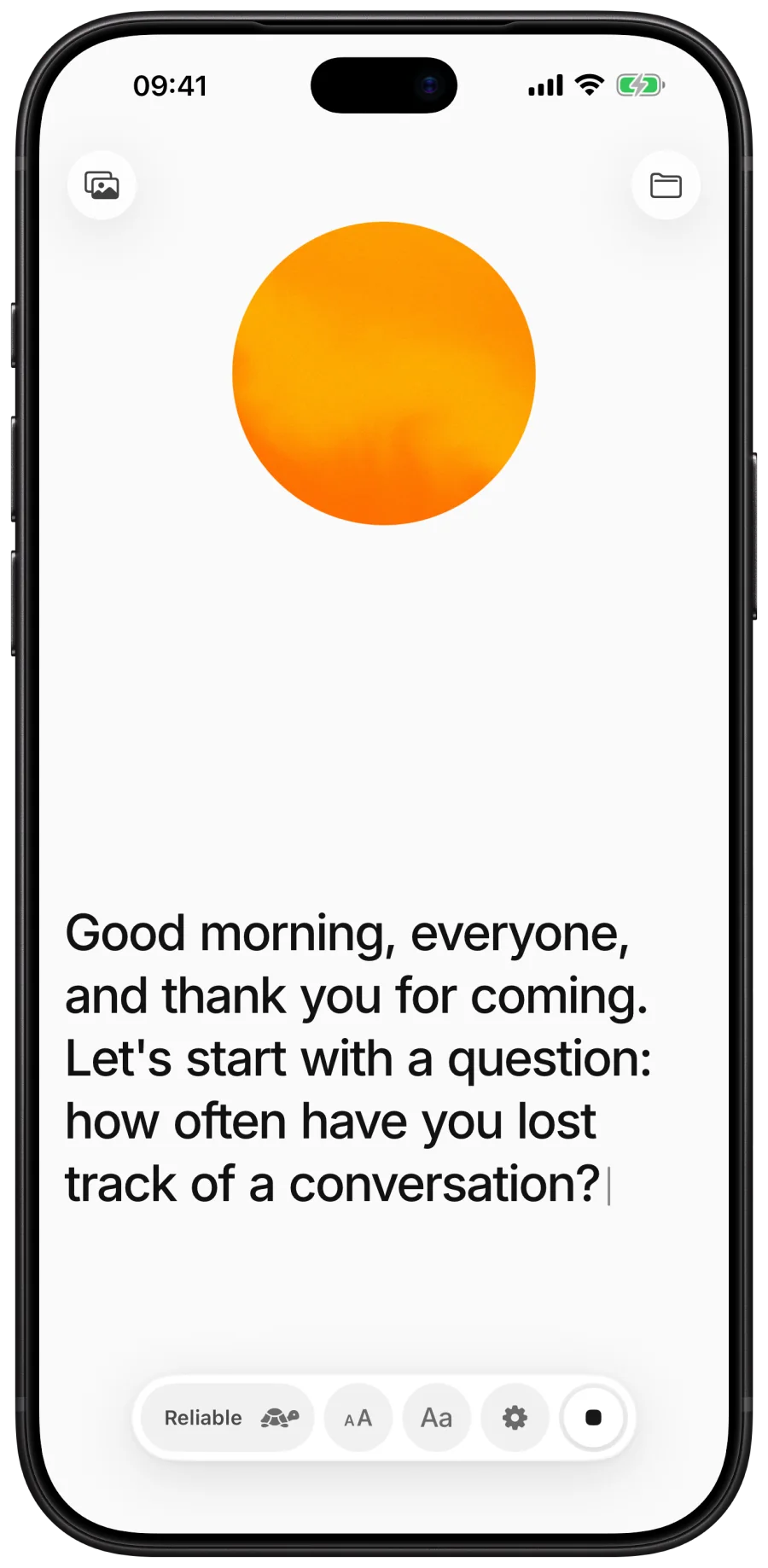
Put the iPhone on the table, between you and whoever is speaking. The orb at the top moves with the voices it hears.
Start and stop
- Tap anywhere on the screen to start listening.
- Read. The screen stays on while duna listens.
- Tap the round button in the bar to stop.
Read
Made for reading
Text that holds still.
So you can keep up.
Words you have already read hold still. The newest line stays at the same height, older lines roll up, and a word only changes while it is still grey. Punctuation, capitals and numbers as digits arrive as people speak.
New voice, new paragraph
When a different person starts speaking, duna usually begins a new paragraph.
Large type
Tap aA and slide, from comfortable to huge.
Four typefaces
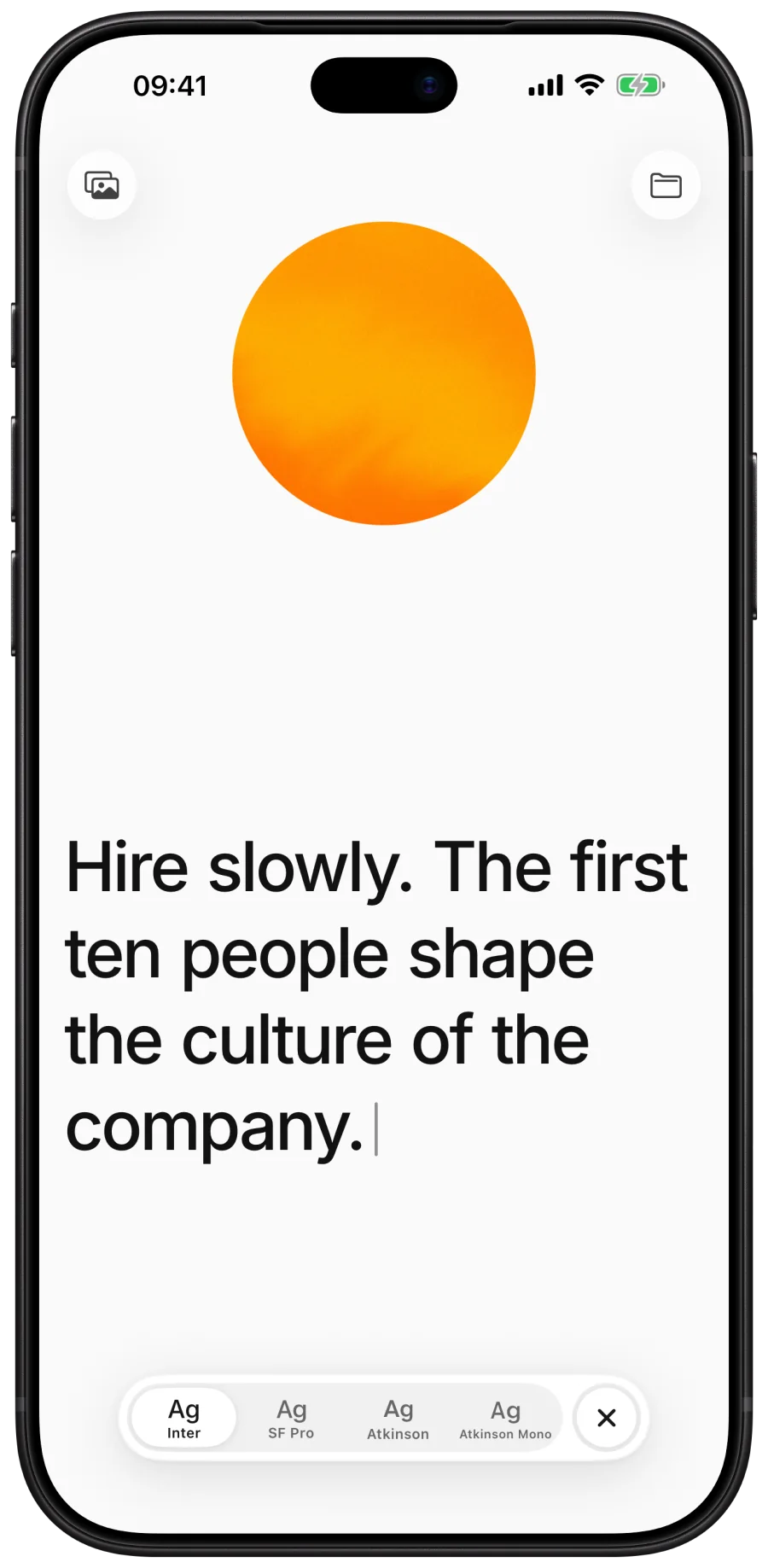
Tap Aa: Inter, SF Pro, and Atkinson Hyperlegible in two cuts, designed for low vision.
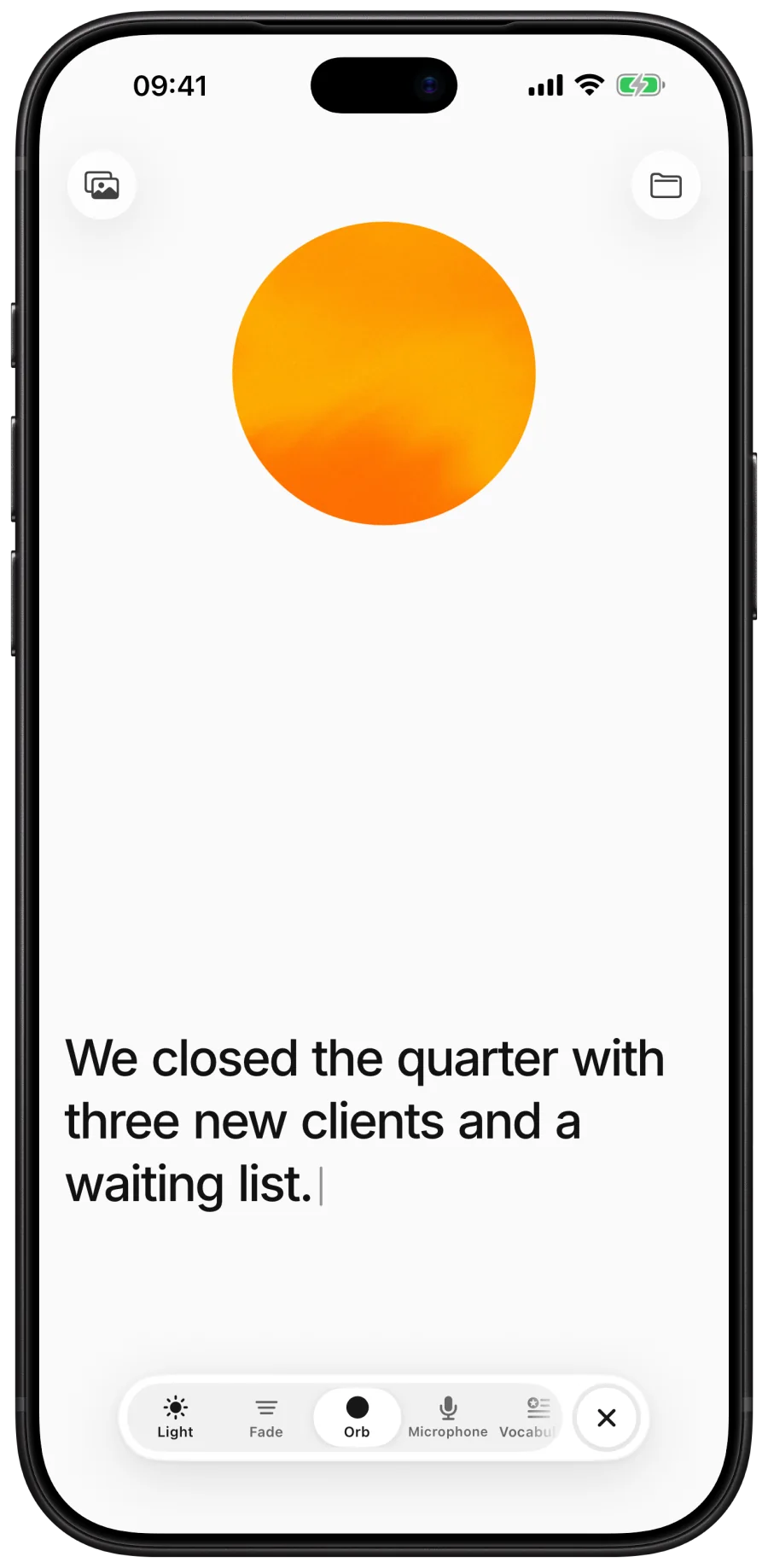
Light and dark are in the bar's settings, behind the gear.
Tune
The bar
One bar,
under your thumb.
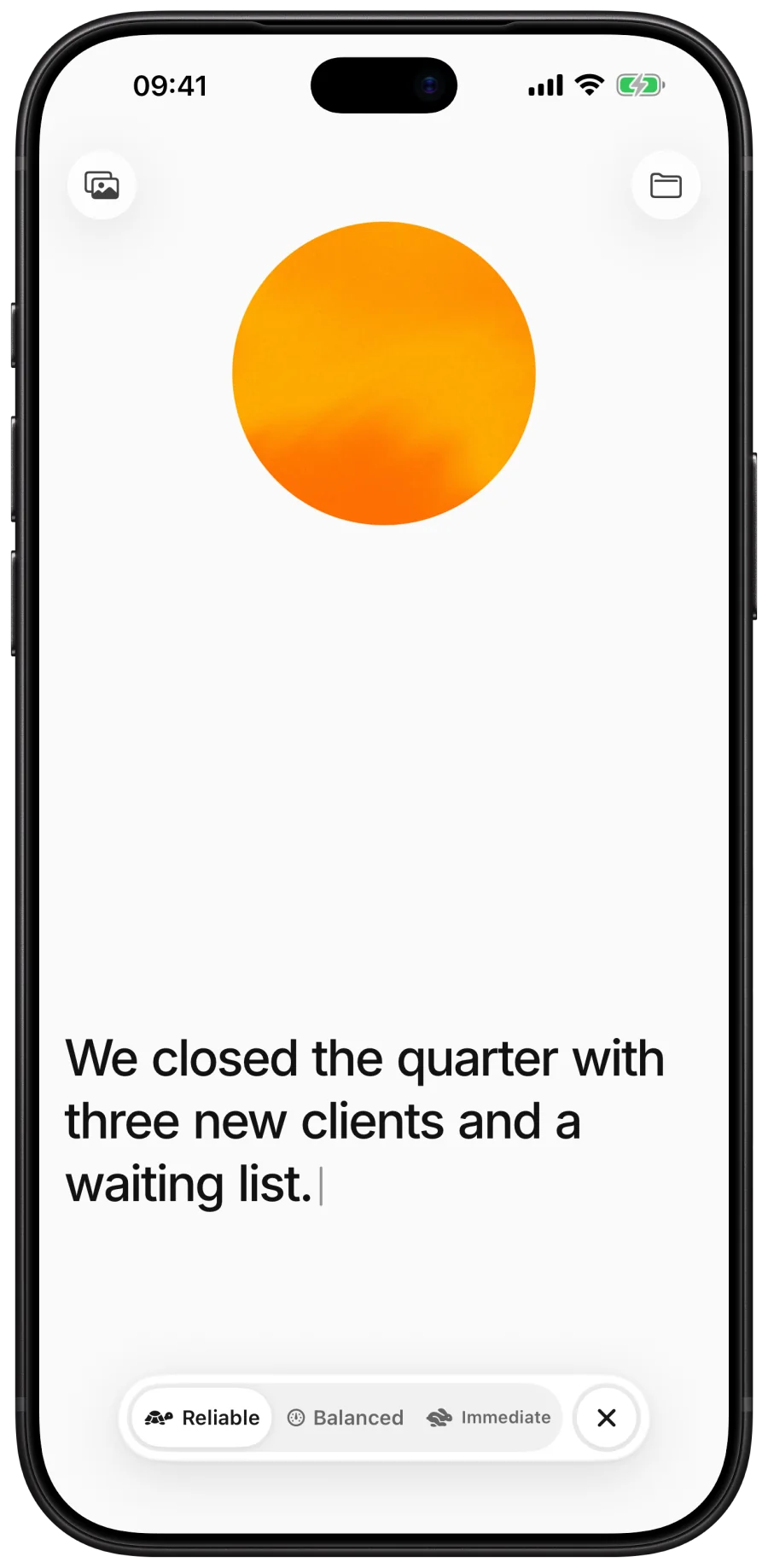
Each control opens in place. Tap the cross to close it.
Reliable
The steadiest text. Words appear a moment later, once duna is sure of them. The best choice for reading.
Balanced
As steady as Reliable, but shows the words still being heard sooner.
Immediate
The fastest. Words settle as soon as they are heard, and now and then one is changed.
Speak
Language
Choose the language
people will speak.
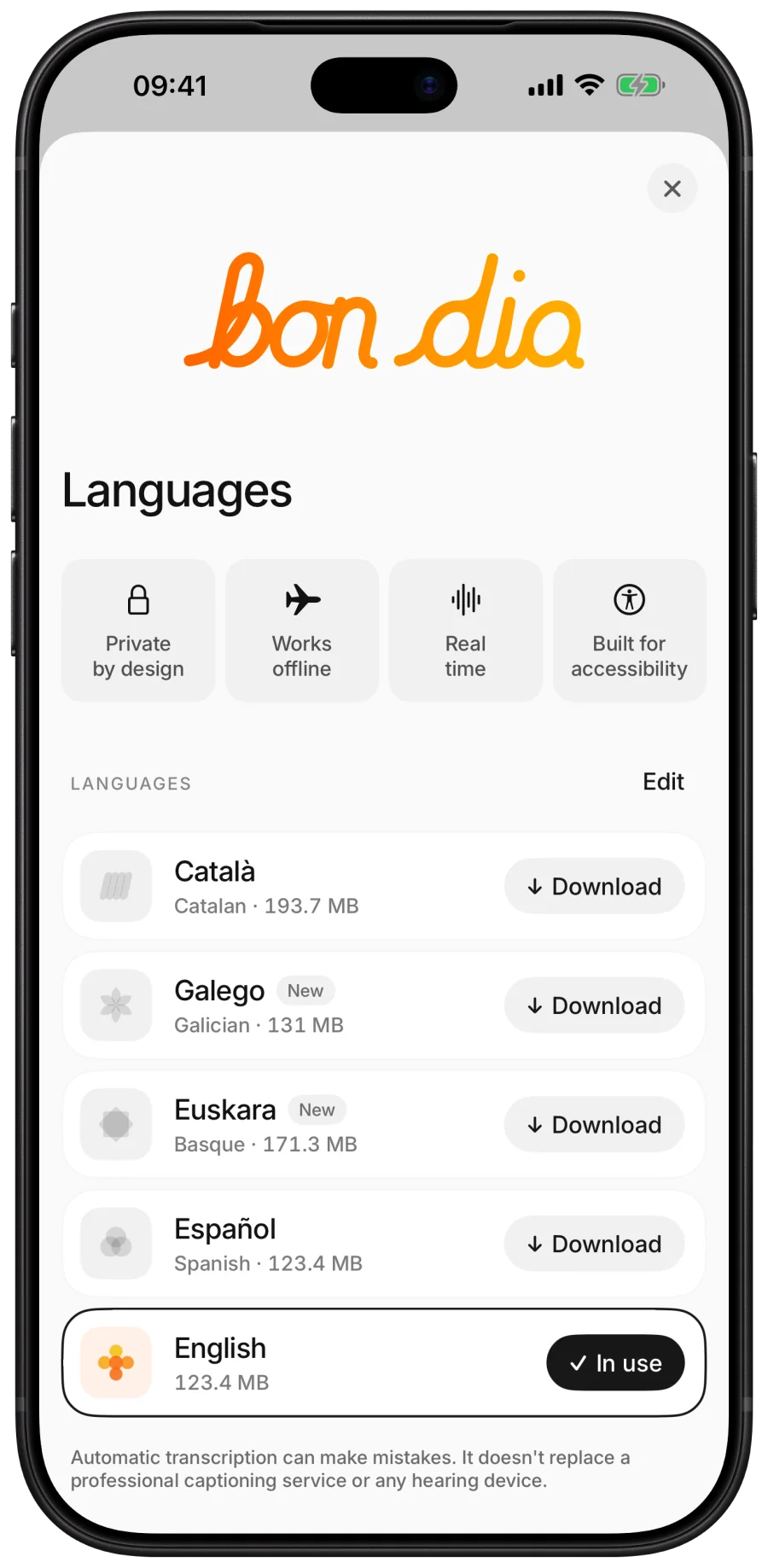
Tap the gear, then the language. Each one downloads once and then works offline. Tap Edit to delete one you no longer need.
Five
Languages
Five languages.
Downloaded once, then offline.
The app stays small: choose the language people will speak and download it once. Galician and Basque are the newest and make more mistakes. The app itself speaks all five.
English
123.4 MB, once
Español
123.4 MB, once
Català
193.7 MB, once
GalegoNew
131 MB, once
EuskaraNew
171.3 MB, once
Names
Vocabulary
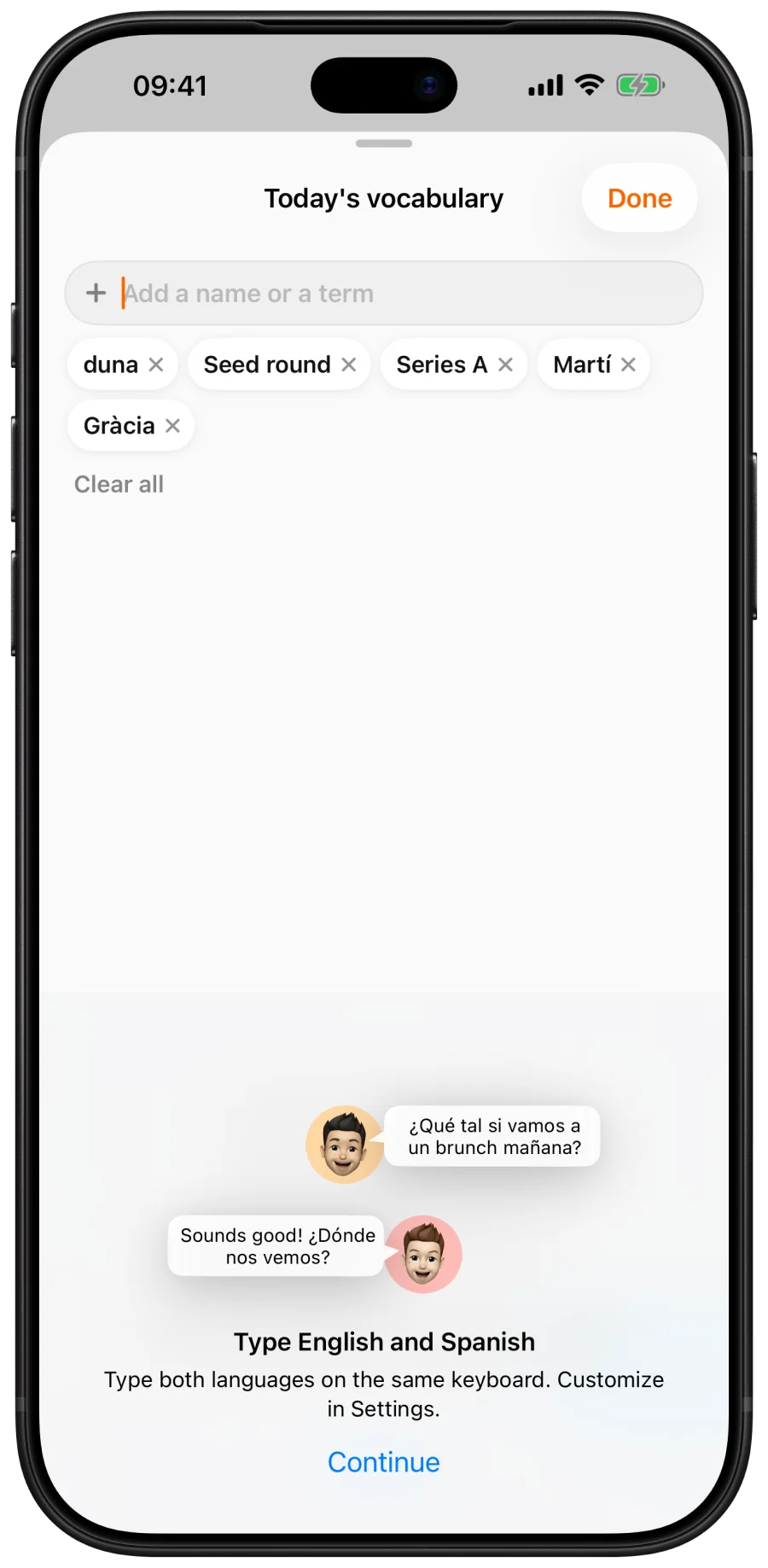
Names and terms,
written the way you write them.
Add the names of the day: people, places, brands, acronyms. duna favours them while it listens. Up to 40 terms, applied at once, even while listening.
Keep
After you stop
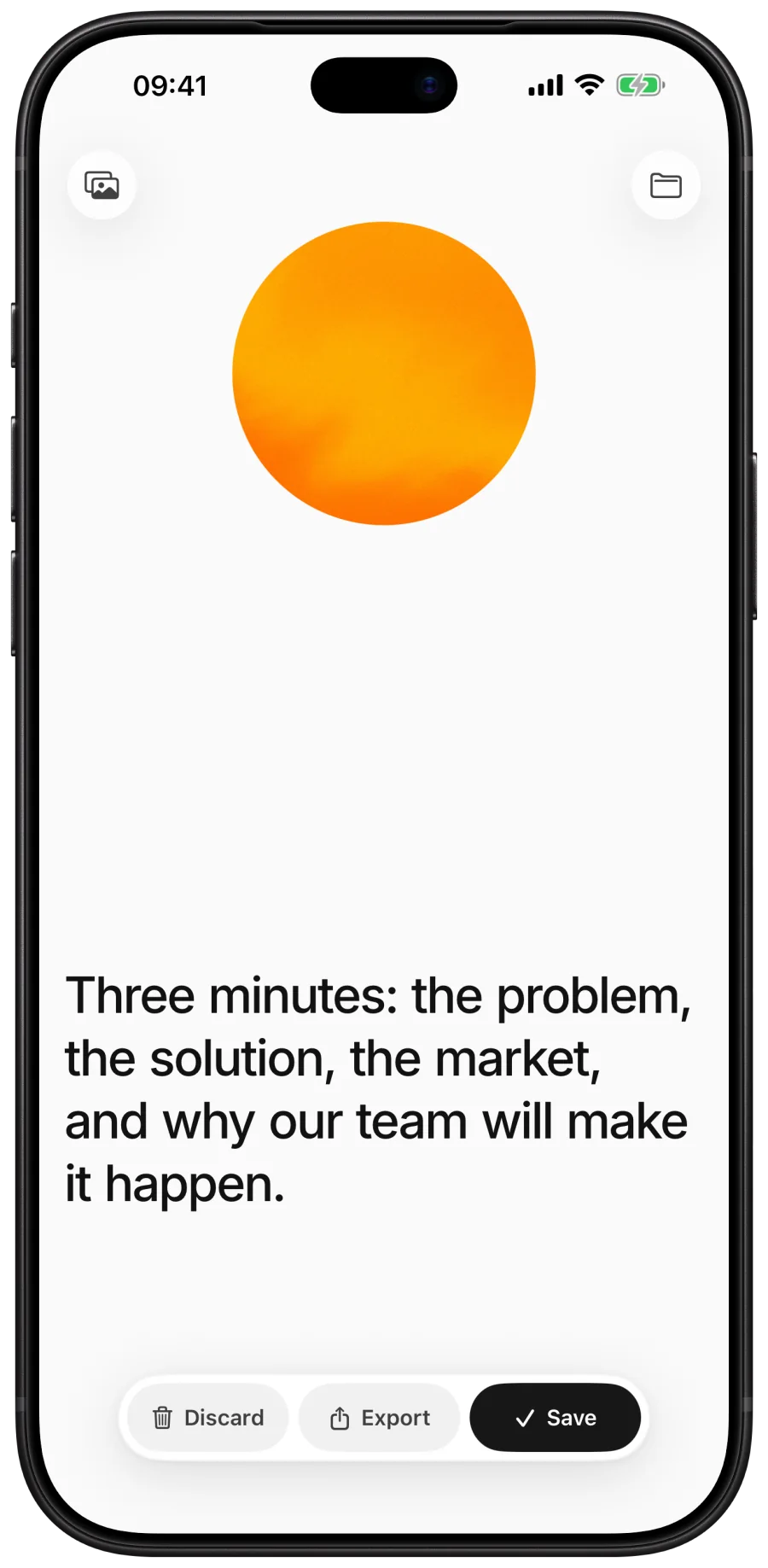
Discard, export or save.
Nothing is lost meanwhile.
The transcript is kept in the folder the moment you stop. Save flies it into the folder at the top right; Export sends it as text, Markdown or .srt subtitles, to Notes, Files, AirDrop or any app; Discard asks first. Tap the screen to start again.
Folder
Transcripts
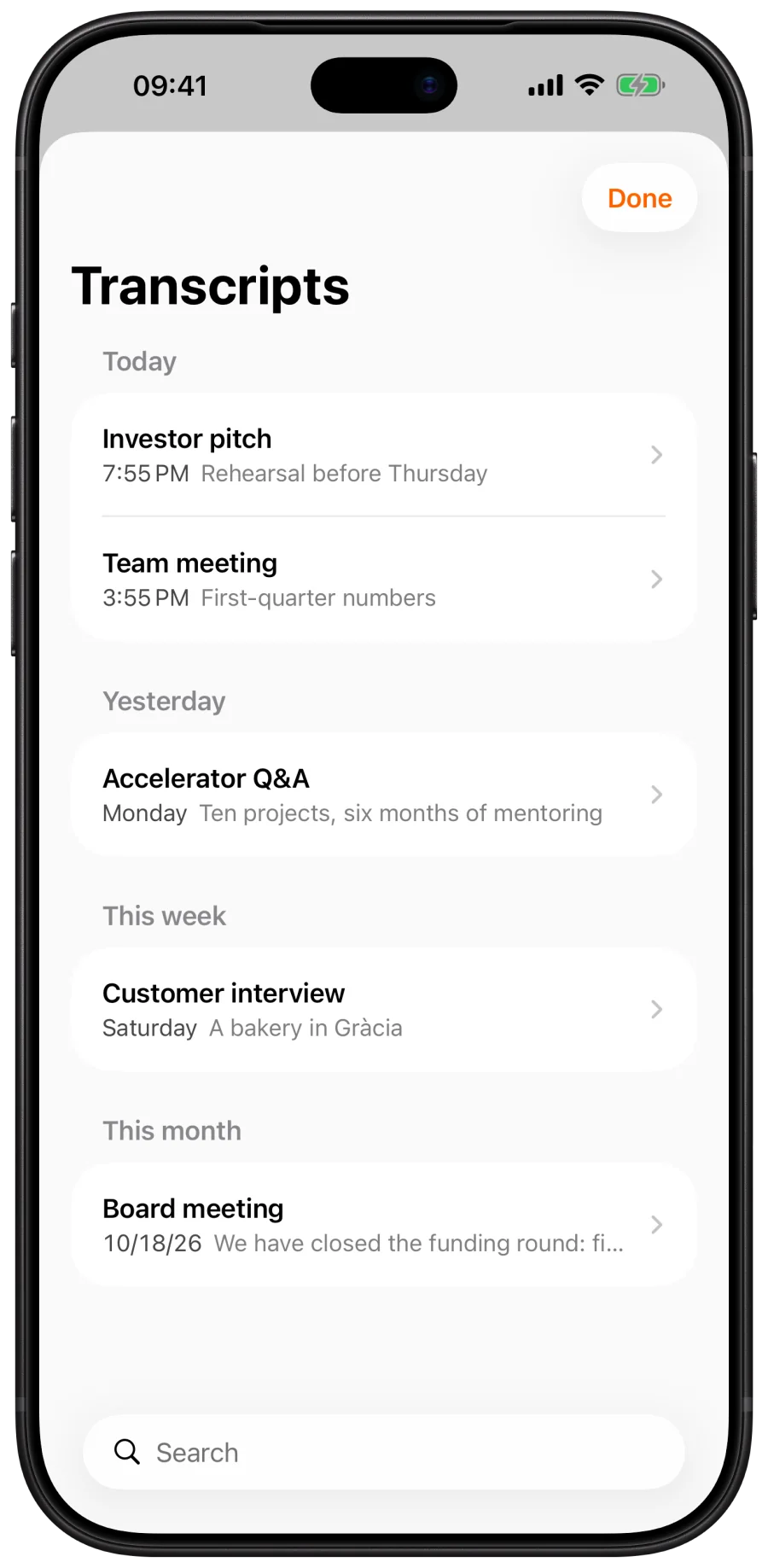
Every session,
kept on your iPhone.
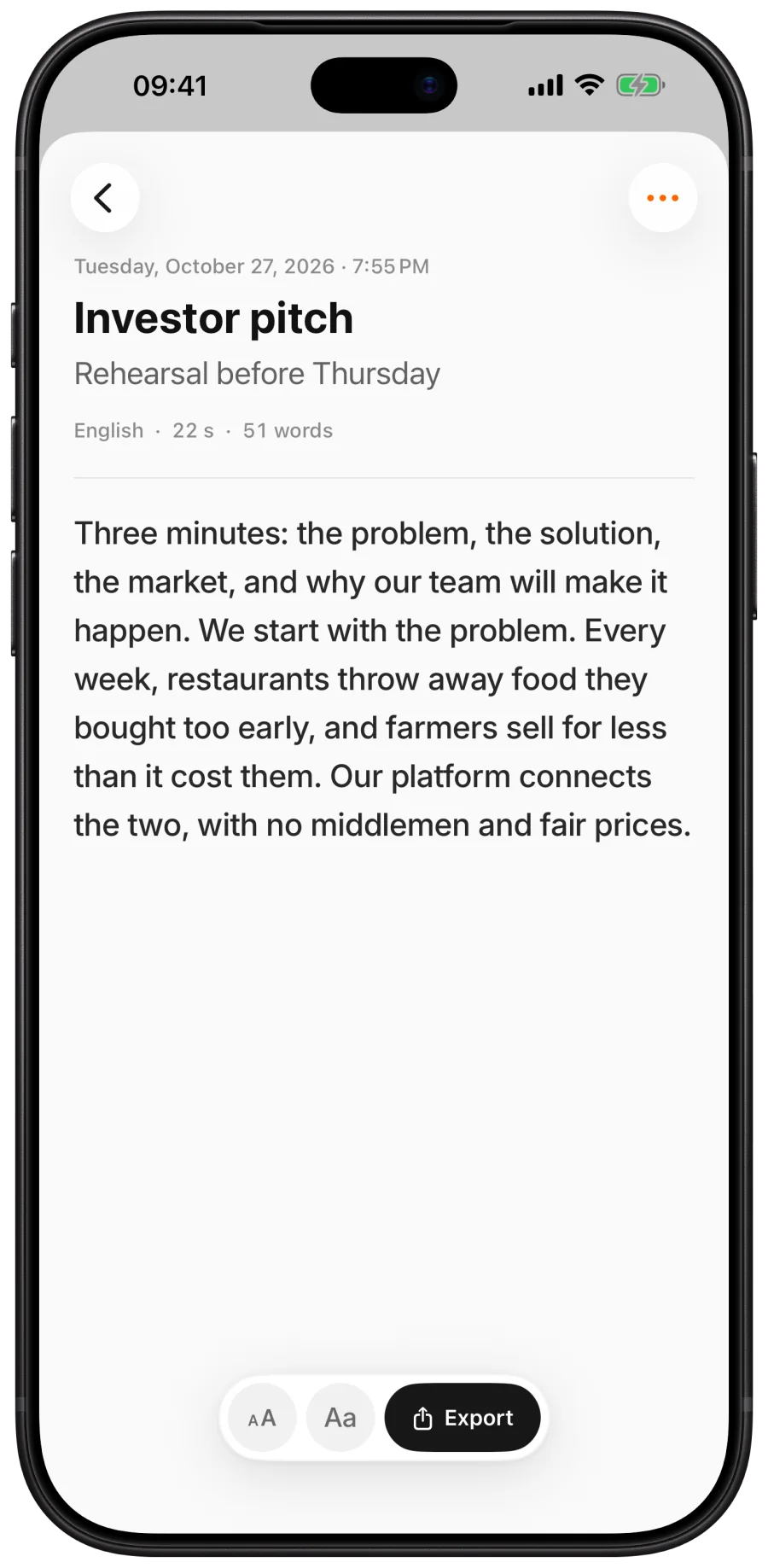
Tap the folder at the top right. Transcripts are listed by day with a search, like notes. Open one to give it a title and a description, correct the text in place, set its size and typeface, and export it.
Video
Subtitles for your videos
Choose a video.
Get its subtitles.
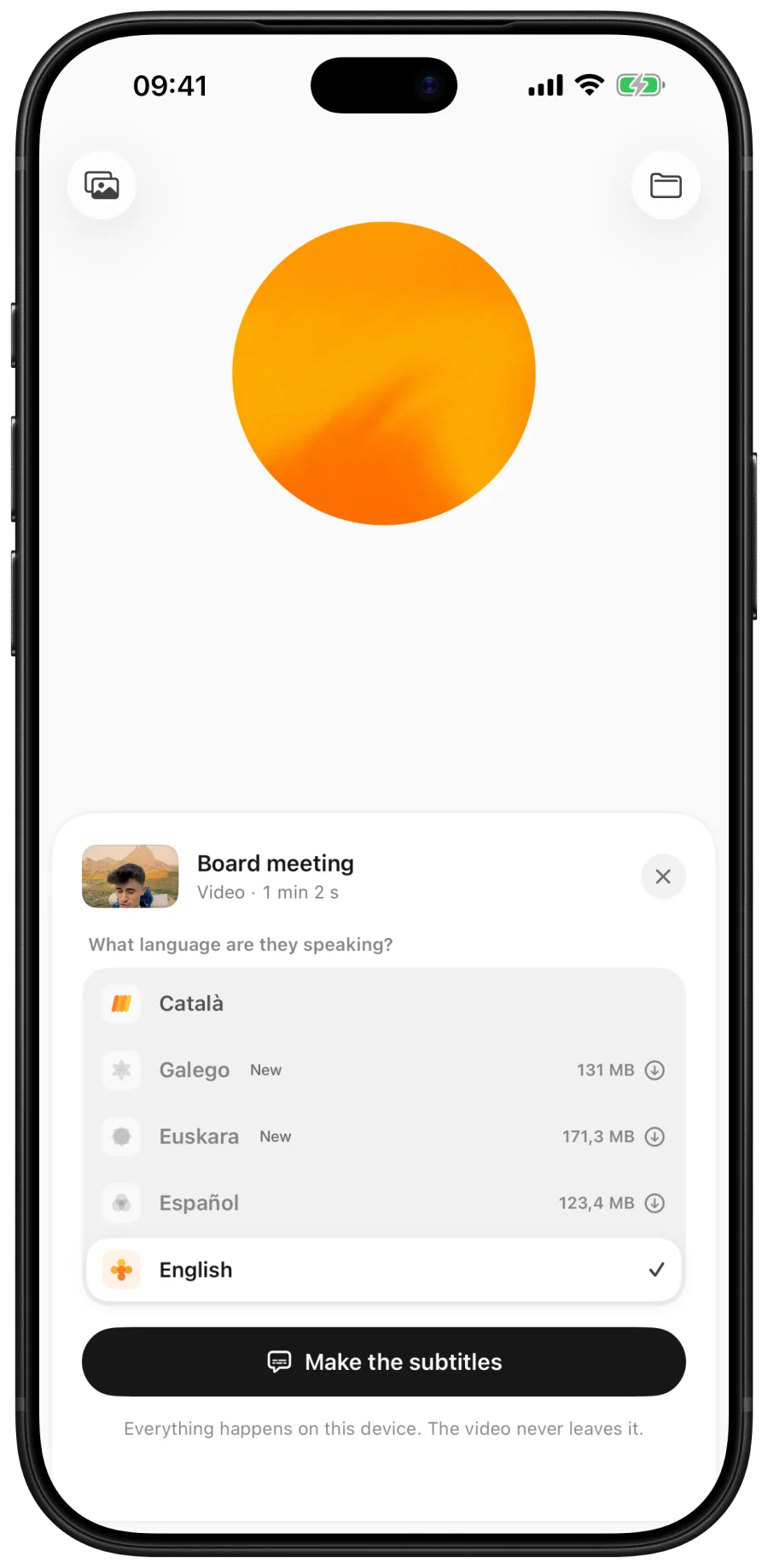
Tap the gallery at the top left and pick a video from Photos or Files, or share one to duna from any app. Say which language is spoken in it, and duna writes the subtitles on the phone.
Make subtitles
- Tap the gallery and choose the video.
- Choose its language and tap Make the subtitles.
- If you leave the app, the job waits and goes on when you come back.
- The editor opens by itself when the subtitles are ready.
Edit
Subtitle editor
Correct them line by line.
Then send the video to Photos.
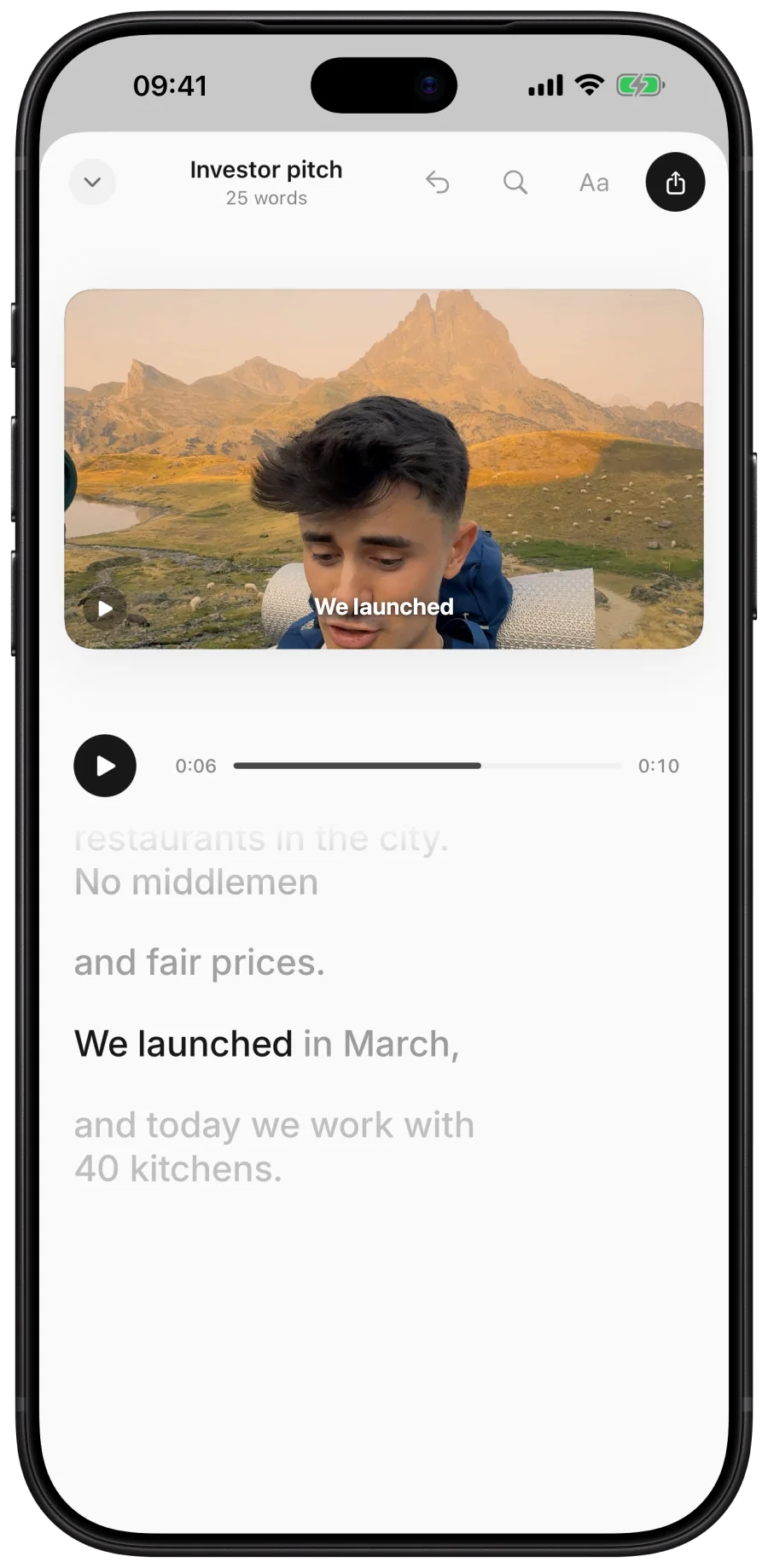
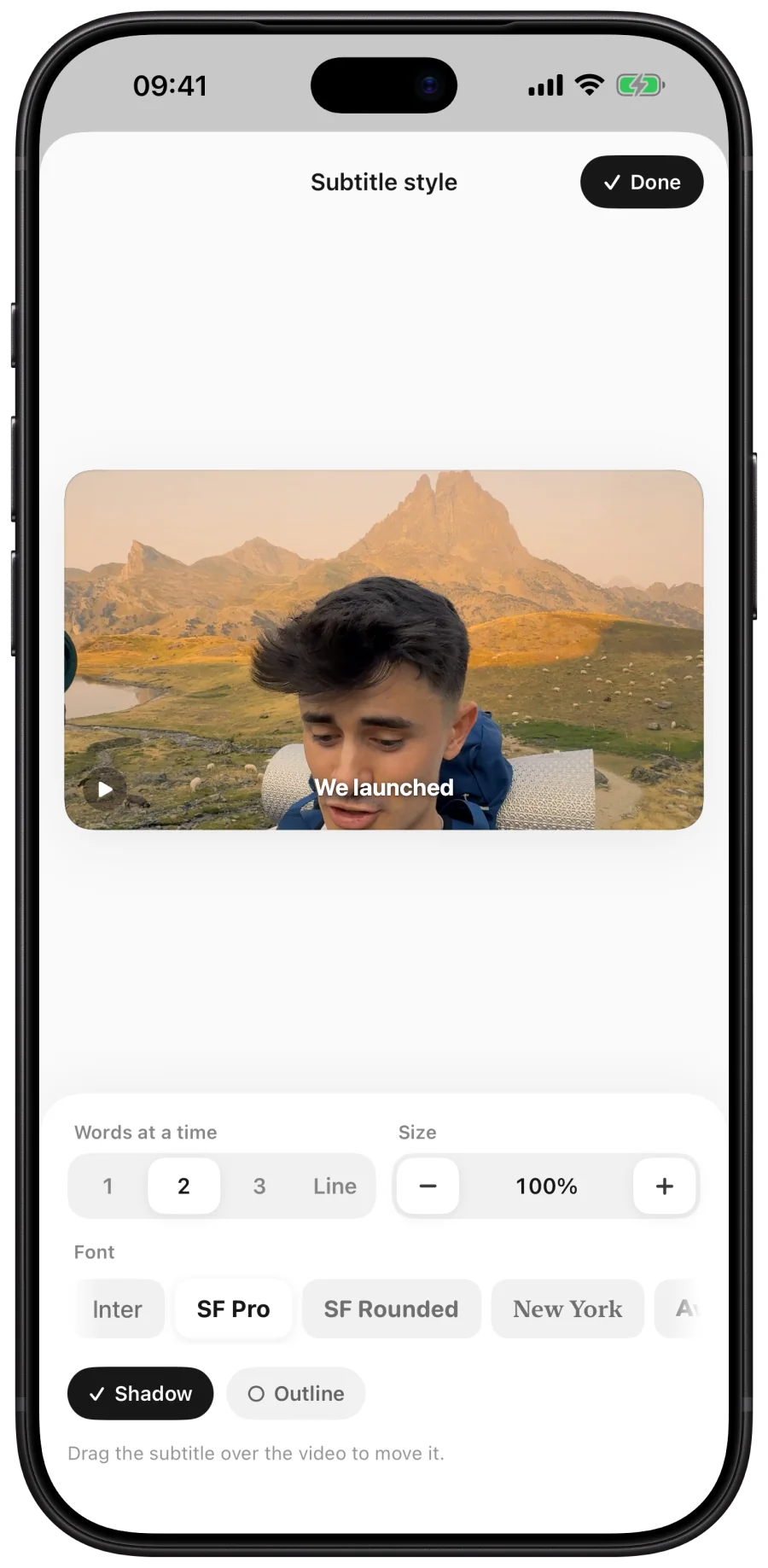
Tap a line: it plays once while you type. Split, join, add or delete lines, and find and replace a word everywhere. Tap Aa to style the captions and drag them anywhere on the film.
Burnt in
Export makes a copy of the video with the captions drawn in, and saves it to Photos by itself.
Subtitles and text
Or take the .srt file and the text, to share or keep in Files.
Kept as you go
Corrections are saved after every change. Open the same video again and continue where you left off.
Only on iPhone
Ready from the Lock Screen.
Or the Action button.
Control Center
Add duna's control to Control Center, the Lock Screen or the Action button to start transcribing at once.
Shortcuts
Start and stop listening, get the text, save it as a file, change the language or make subtitles for a video.
Share to duna
From Photos, Files or any app, share a video to duna. Open duna and its subtitles begin.
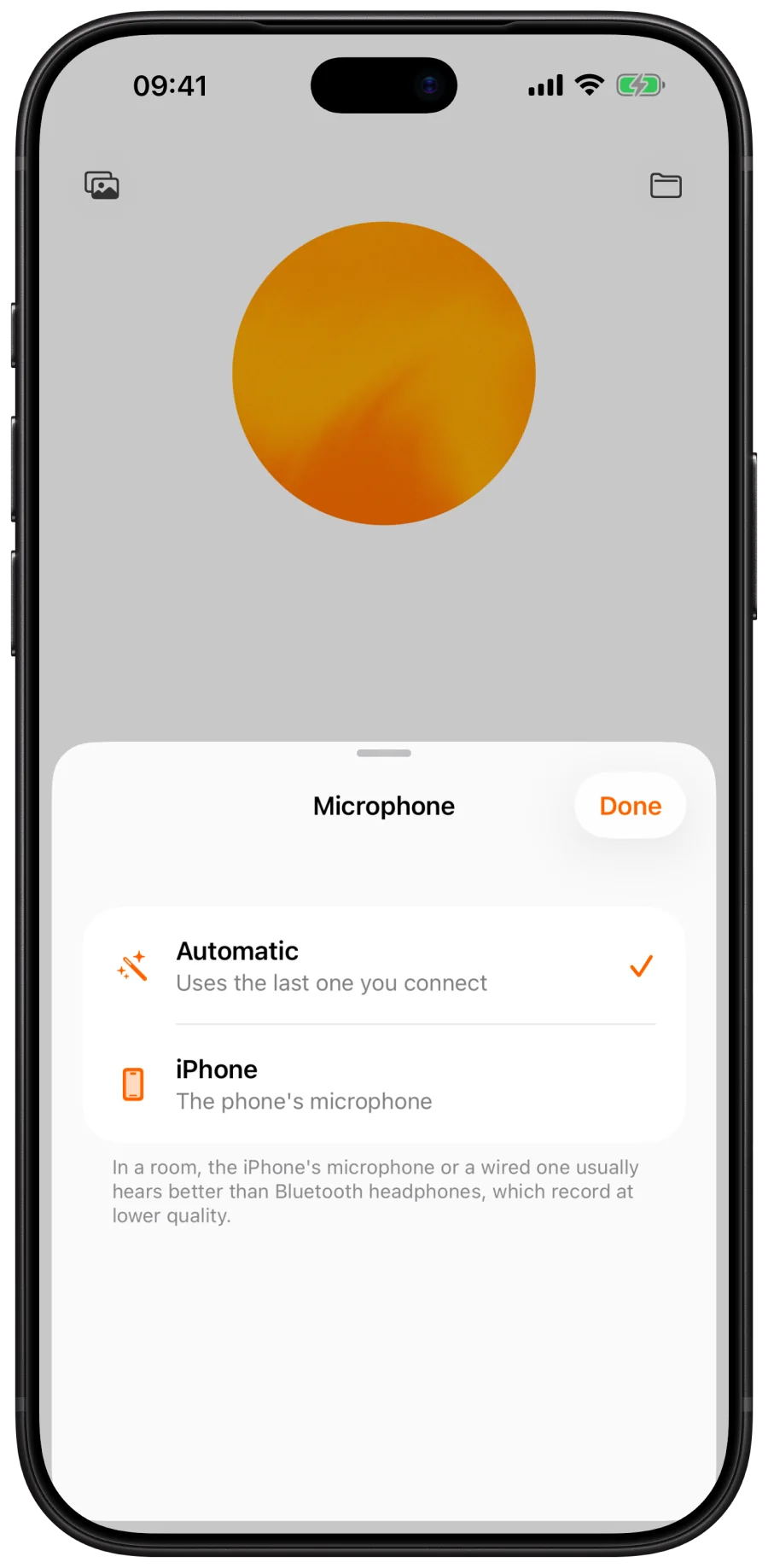
Any microphone
The iPhone's own, a wired one, or Bluetooth headphones. duna keeps listening when you switch.
Haptics
Every tap and snap has its own feel.
Light and dark
In the settings, behind the gear.
Privacy
0 bytes
Nothing you hear leaves your device.
No account, no server, no analytics. The speech models run on your own chip, so no audio and no text is sent anywhere, and after a language's one-time download duna works in Airplane Mode. Read the Privacy Policy.
Mac and iPhone
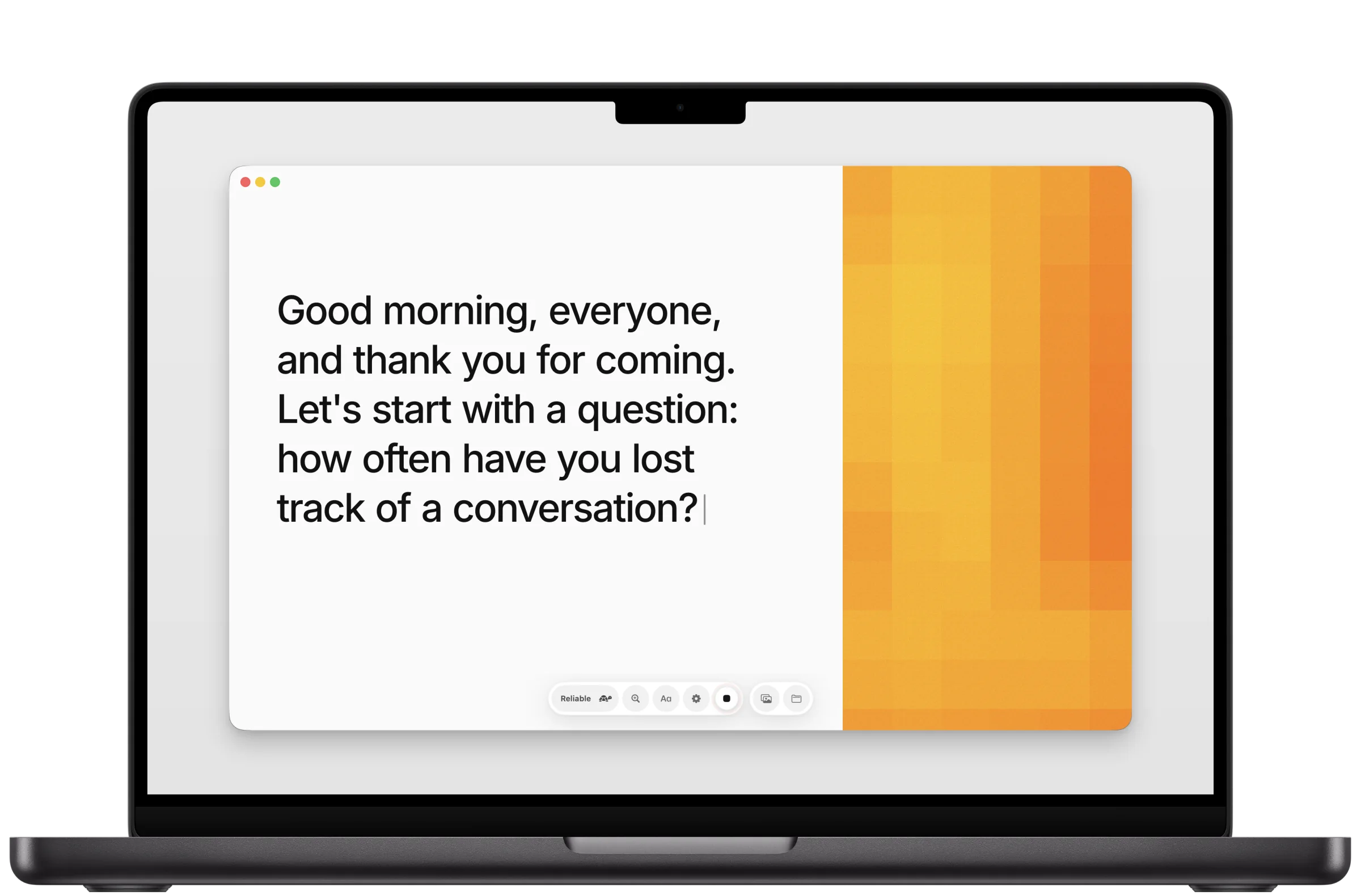
One app.
On the Mac and the iPhone.
One download from the App Store gives you both. Each device listens and transcribes on its own: nothing travels between them, or anywhere else.
Price
Free.
Every feature, on every device.
No subscription, no in-app purchases, no ads. One download gives you duna on your iPhone and your Mac.
Questions
Short answers.
Which iPhone do I need?
An iPhone on iOS 26 or later.
Does it need the internet?
Only to download a language, once. After that, listening, transcribing and making subtitles all work offline.
How accurate is it?
It is an automatic transcription and it can make mistakes, above all with names, noise, music or several people talking at once. Add names to the vocabulary, sit the device close to whoever speaks, and choose Reliable for the steadiest text. Galician and Basque make more mistakes than the other three.
Is it a hearing aid?
No. duna writes what it hears so you can read it. It is not a medical device and does not replace professional captioning.
Which languages can it listen to?
English, Spanish, Catalan, Galician and Basque. Choose one per session: duna transcribes the language you chose.
Where are my transcripts?
On the device where you made them, in duna's folder. They are not uploaded and they do not sync between devices.
Something else? Support answers every message.